
Settings
The Settings section is where you update your profile, choose the institution type your dashboard is set up for, and control your notifications.
Accessing Settings
- Click "Settings" in the sidebar navigation, or
- Click your profile picture in the top right and select "Settings"
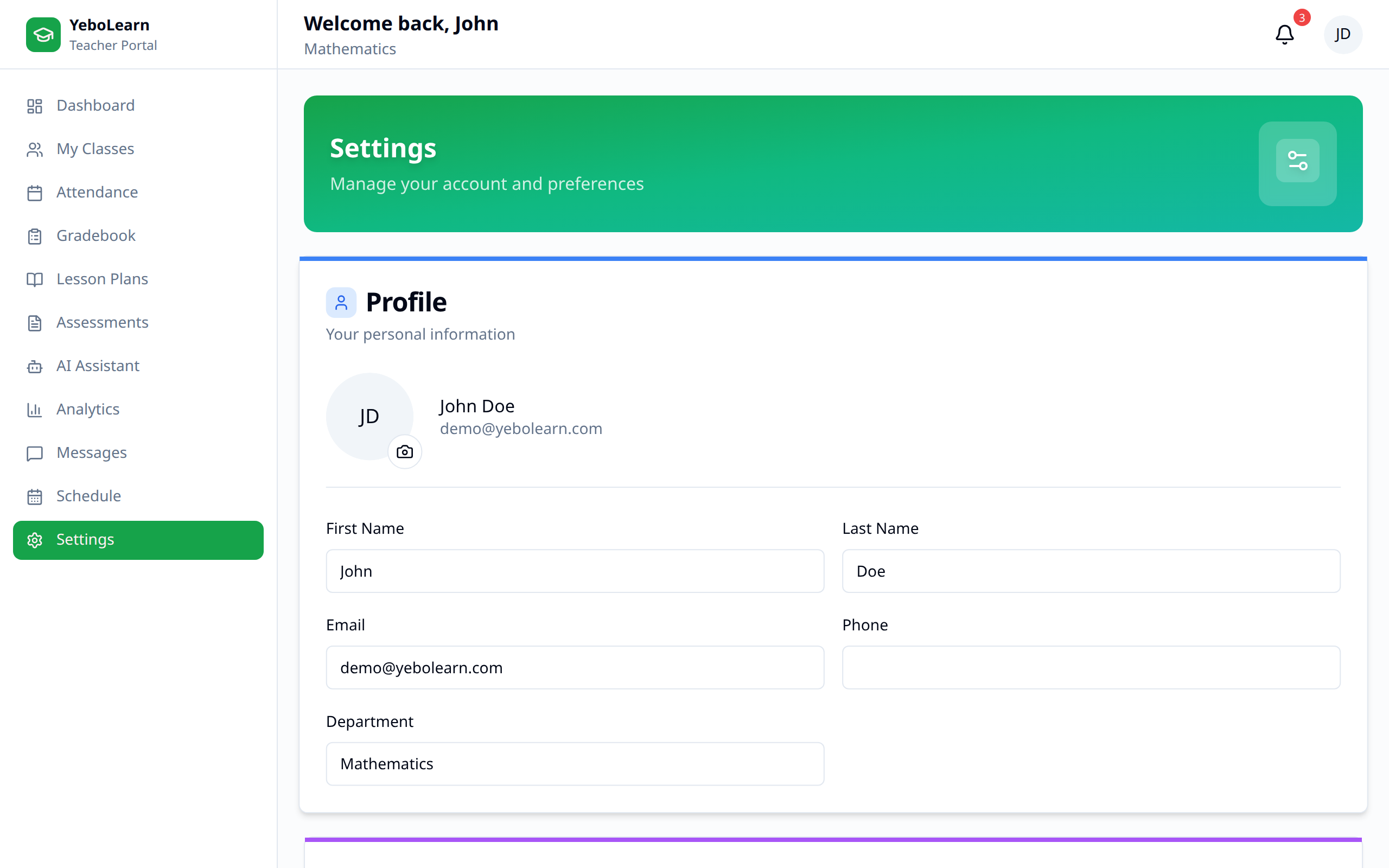
Changes on this page are only stored when you click "Save Changes" at the bottom — with one exception, noted under Dashboard Mode.
Profile
Your personal information sits in the first card:
| Field | Editable | Notes |
|---|---|---|
| First Name | Yes | |
| Last Name | Yes | |
| No | It's your login. Ask your school admin to change it. | |
| Phone | Yes | |
| Department | Yes | Shown under your name in the top bar |
Click "Save Changes" when you're done. A confirmation appears when the save succeeds, and an error message if it doesn't.
Dashboard Mode
The Institution Type setting tailors the dashboard to the kind of school you teach at. It changes which items appear in the sidebar.
| Institution Type | For |
|---|---|
| ECD Center | Early Childhood Development (0-6 years) |
| Primary School | Primary education (6-12 years) |
| Secondary School | Secondary education (12-18 years) |
| University | Tertiary education (18+ years) |
| TVET | Technical and vocational training |
Choosing a mode applies immediately — you don't need to click Save Changes for this one, and a confirmation appears straight away. The choice is remembered in the browser you're using, so set it again if you sign in on another computer.
:::note Switching to ECD Center replaces the class-based pages (My Classes, Gradebook, Lesson Plans, Assessments, Flashcards, AI Assistant, Analytics) with ECD Overview, Children, Milestones, and Daily Reports. University and TVET also hide Messages, TVET additionally hides Flashcards, and Primary School, University, and TVET all hide AI Assistant (only Secondary School currently has it). Switch back if you've changed it by mistake. :::
The card also reminds you which mode is active under Current mode.
Notification Preferences
Four switches control what reaches you:
| Notification | What it covers |
|---|---|
| Email Notifications | Notifications sent to your email |
| Push Notifications | Notifications in your browser |
| Attendance Alerts | Attendance issues |
| Message Notifications | New messages |
Flip the switches, then click "Save Changes".
Changing Your Password
There's no password change screen in the Teachers App. Ask your school administrator to reset your password or send you a new invite link.
Tips
- Keep your details current - Your name and department appear across the app, including in the staff directory other teachers pick from when messaging
- Check your institution type - The wrong mode hides the pages you need
- Leave message notifications on - It's the simplest way to know a parent has replied
- Save before leaving - Profile and notification changes are lost if you navigate away without saving
TIP
Take time to configure your notification settings to avoid missing important updates while preventing notification overload.