
Attendance
The Attendance section lets you record today's attendance for your classes and review past records.
Accessing Attendance
- Click "Attendance" in the sidebar navigation
- Pick a class from the dropdown at the top right
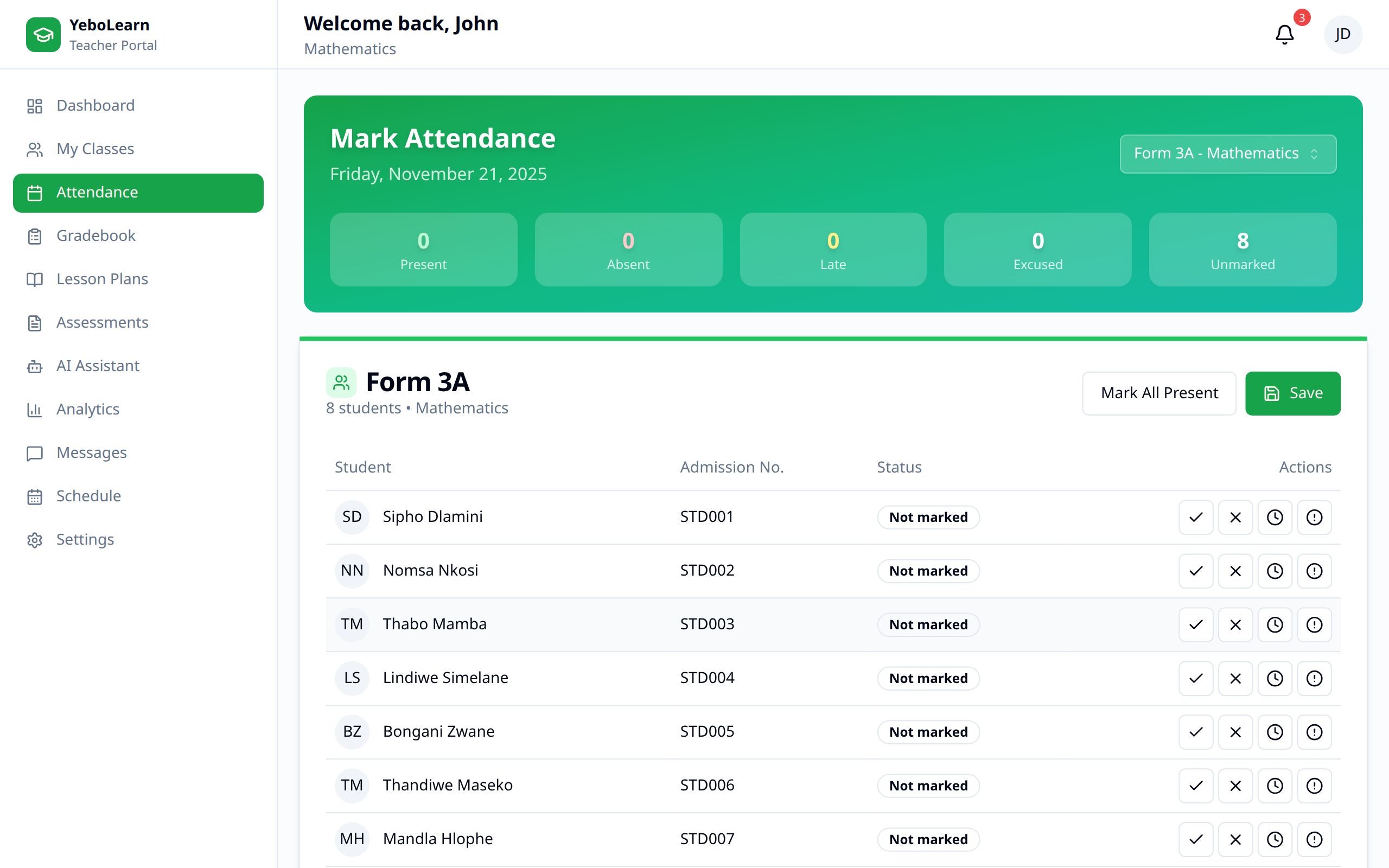
The dropdown lists only the classes you're assigned to. If it shows "No assigned classes", ask your school admin to assign you to a class subject first.
Taking Attendance
The page is headed Mark Attendance and always records against today's date, shown under the heading.
- Select the class
- The student list appears, each with an Admission No. and a Status
- Mark each student using the four buttons on their row:
- Tick - Present
- Cross - Absent
- Clock - Late
- Exclamation - Excused
- Click "Save"
The status column updates as you go and reads "Not marked" until you choose something.
Attendance Status Options
| Status | Use When |
|---|---|
| Present | Student is in class |
| Absent | Student is not in class |
| Late | Student arrived after start time |
| Excused | Approved absence (medical, etc.) |
Marking Everyone Present
Click "Mark All Present" to set every student on the roster to Present, then change the few who aren't. This is usually the fastest way to work through a full class.
The Counters
The banner at the top counts Present, Absent, Late, Excused, and Unmarked as you mark, so you can see at a glance whether anyone is still unmarked before you save.
TIP
You only need to mark the students you want to record — unmarked students are skipped. If nothing is marked, saving shows "Nothing to save — mark at least one student".
Correcting Today's Attendance
If you marked someone wrongly, change their status and click "Save" again. Saving twice for the same student on the same day updates the existing record rather than creating a second one.
Attendance History
The history screen lives at /attendance/history (type it into the address bar, or use the back arrow from that page to return to marking). It shows what's already been recorded.
Summary Cards
- Days Recorded - Number of class-days in the selected range
- Avg. Attendance - Average attendance rate across those days
- Total Absences - Absences in the range
- Classes - How many classes you teach
Filters
| Filter | Description |
|---|---|
| From | Start of the date range (defaults to two weeks ago) |
| To | End of the date range (defaults to today) |
| Class | A single class, or "All my classes" |
Click "Export CSV" to download the filtered records as a spreadsheet.
Historical Records
One row per class per day, showing Date, Class, Total, Present, Absent, Late, a Rate percentage badge, and the names of the Absent Students (with a reason where one was recorded).
Attendance Insights
Below the table, Attendance Insights lists students absent twice or more within the selected range, with their absence count and any reasons recorded. Use it to spot patterns early.
Best Practices
- Take attendance promptly - At the start of each class, while it's fresh
- Be accurate - Check the counters before saving
- Review regularly - Use the history screen weekly
- Follow up - Address repeat absences early
- Communicate - Message parents through the Messages section when you're concerned
TIP
Consistent attendance taking helps identify struggling students early and maintains accurate school records.
Troubleshooting
Attendance Not Saving
- Unlike marks and remarks, attendance saves directly to the server and needs a live connection — it isn't queued in the offline outbox, so if you're offline the save fails right away rather than waiting to sync
- A red message appears if the save fails — check your connection and try again
- Make sure at least one student is marked
- Make sure a class is selected
Wrong Date
- The marking screen always records today's date — there's no date picker for back-dating. If a past day needs fixing, ask your school administrator.
Missing Students
- Contact your admin to add students to the class roster
- Check whether the student was recently enrolled