
Assessments
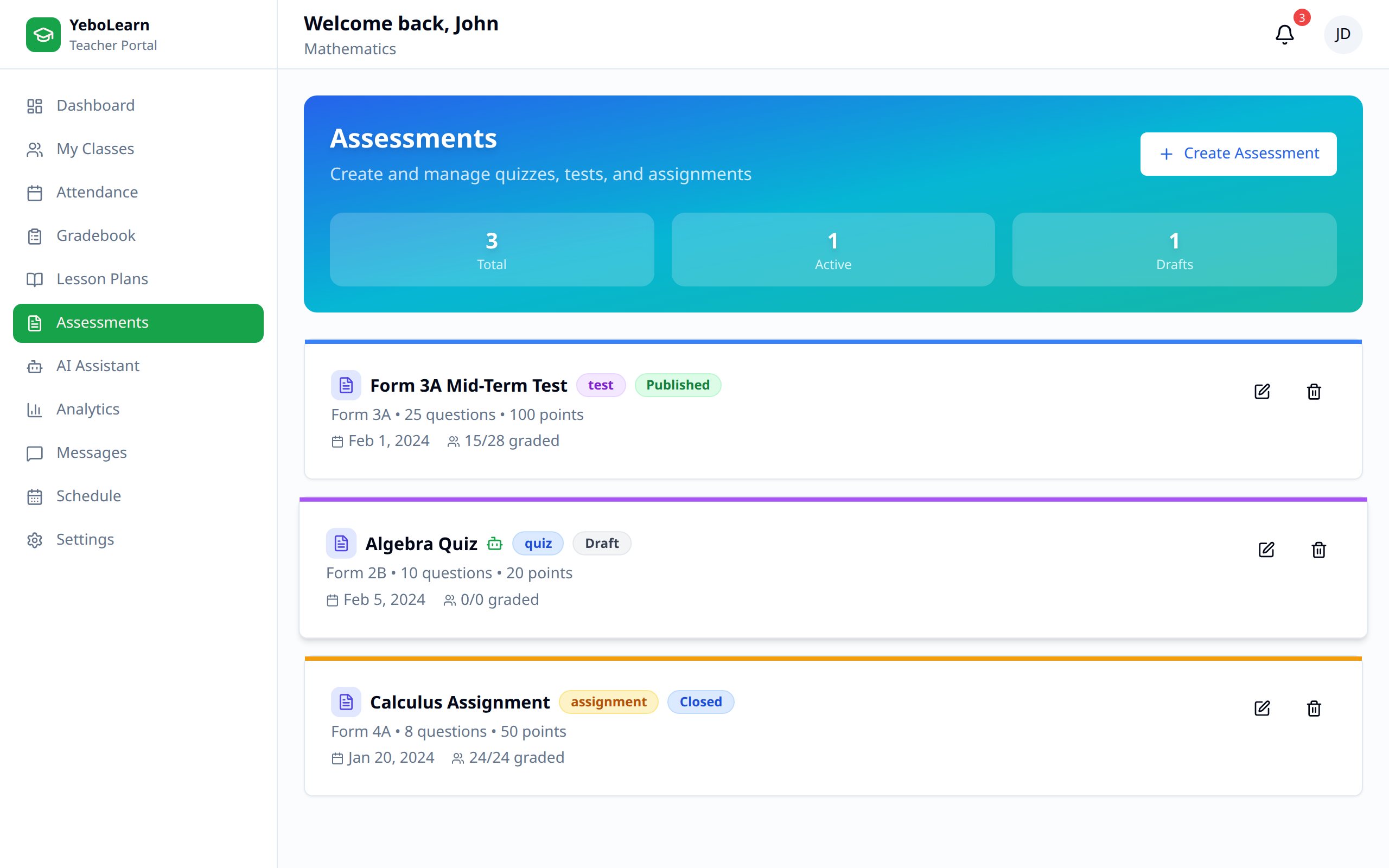
The Assessments section lets you build quizzes, tests, and exams — each with its own questions — and publish them to your students.
Marks live in the Gradebook
Assessments here hold the questions. The marks that appear on a student's term report card are the ones you enter in the Gradebook. For the full term → marks → PDF flow, read the Report Cards guide.
Accessing Assessments
- Click "Assessments" in the sidebar navigation
- Your assessments are listed as cards
Assessment Types
| Type | Typical Use |
|---|---|
| Quiz | Quick knowledge check |
| Test | End of topic or unit |
| Exam | Mid-term or final |
Creating Assessments
Starting a New Assessment
- Click "Create assessment"
- Fill in the details
- Add your questions
- Click "Save Assessment"
Assessment Details
| Field | Description |
|---|---|
| Title * | Name of the assessment, e.g. "Term 2 Algebra Test" |
| Description | What the assessment covers |
| Instructions for students | Notes shown to students, e.g. "Answer all questions." |
| Type * | Quiz, Test, or Exam |
| Subject | One of the subjects you teach (optional) |
| Class | One of your classes (optional) |
| Duration (minutes) | How long students get (optional) |
| Publish to students | Toggle on to release it; off keeps it a draft only you can see |
Fields marked * are required.
Adding Questions
Every assessment needs at least one question. Click "Add Question" for each one, and fill in:
- **Question *** - the question text
- Question Type - Multiple choice, Short answer, or Essay
- Marks - what the question is worth
Then, depending on the type:
| Question Type | What else to fill in |
|---|---|
| Multiple choice | At least two Options. Click "Mark correct" next to the right one — it turns green and reads "Correct". Use "Add Option" for more. |
| Short answer | An Expected Answer (optional) used as a marking reference |
| Essay | Nothing — essay questions are marked manually |
The Questions card header keeps a running count of questions and total marks. Use the bin icon to remove a question or an option.
Managing Assessments
Assessment List
Each card shows the title, a type badge, the description, the subject and class, the number of questions, the total points, the duration, and whether it's Published or Draft.
Long lists are paged — use Previous and Next at the bottom, where you'll also see "Page X of Y" and the total count.
Filtering
Two dropdowns sit above the list:
| Filter | Options |
|---|---|
| Type | All types, Quiz, Test, Exam |
| Status | All statuses, Published, Draft |
Editing Assessments
- Find the assessment
- Click "Edit"
- Make your changes
- Click "Save Changes"
WARNING
Be careful editing a published assessment. Changes reach students who may already have started it.
Deleting Assessments
- Click the bin icon on the assessment card
- Confirm in the "Delete assessment?" dialog by clicking "Delete assessment"
The assessment and its questions are removed, and this can't be undone.
Publishing Assessments
Publishing is the "Publish to students" switch on the assessment form:
- Off — the assessment stays a draft only you can see
- On — students can see it
You can flip the switch at any time by editing the assessment and saving.
Best Practices
- Clear instructions - Write unambiguous questions and fill in the instructions field
- Fair timing - Set a realistic duration
- Align with learning - Test what you've taught
- Vary types - Mix multiple choice, short answer, and essay questions
- Draft first - Leave "Publish to students" off until the assessment is finished
Tips
TIP
Keep the total marks in mind as you build — the Questions header adds them up for you as you type.
TIP
Set the Subject and Class on each assessment so you can tell at a glance which one belongs where.