
Messages
The Messages section lets you write to parents and guardians, and to other teachers and staff at your school.
Accessing Messages
- Click "Messages" in the sidebar navigation
- Your message inbox opens
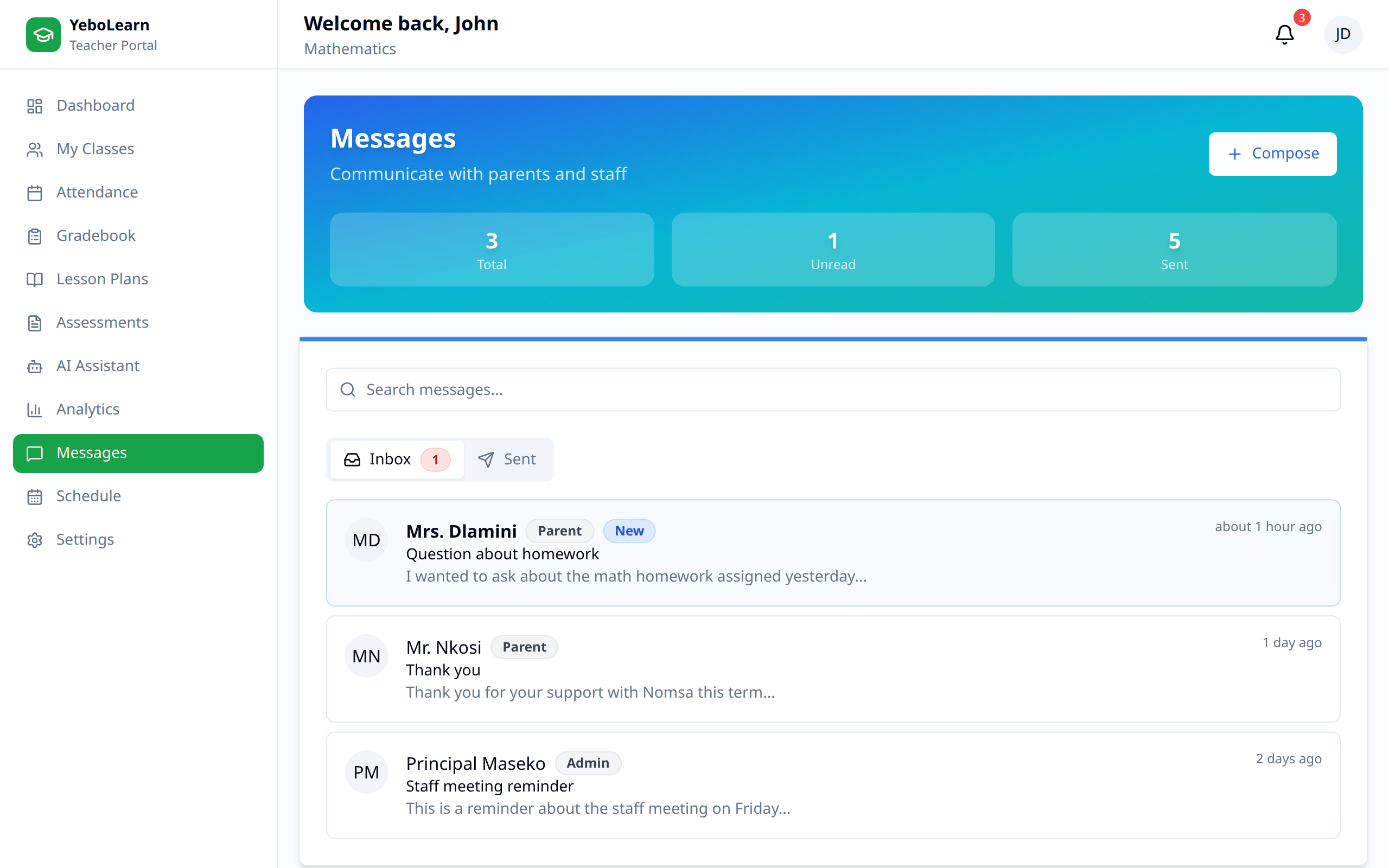
Inbox Overview
The banner at the top counts your Inbox, Unread, and Sent messages.
Message List
Below the search box are two tabs, Inbox and Sent. The Inbox tab carries a red count of unread messages.
Each row shows:
- The sender's initials and name (on the Sent tab, "To:" and the recipient)
- The subject
- A short preview of the message
- How long ago it was sent
- A blue New badge while it's unread
Reading a Message
Click a message to expand it in place and read the full text. Opening an unread message marks it as read. Click it again to collapse it.
Marking Everything Read
Click "Mark all read" above the tabs to clear the unread count in one go. The button is greyed out when you have nothing unread.
Searching
Type in the "Search messages..." box to filter the list you're looking at. It matches the other person's name, the subject, and the message text.
Composing Messages
New Message
- Click "Compose"
- Choose the Recipient type
- Choose the Recipient
- Enter a Subject
- Write your Message
- Click "Send Message"
Recipient Selection
| Recipient type | Who it lists |
|---|---|
| Parent / Guardian | Guardians registered at your school |
| Teacher / Staff | Teachers and staff at your school |
The recipient dropdown shows each person's name, their department or relationship, and their email address, so you can tell people with similar names apart. Messages go to one recipient at a time.
If the list can't load, an error with a Retry button appears instead of an empty dropdown.
Length Limits
- Subject — at least 3 characters, up to 200
- Message — up to 5,000 characters, with a running count under the box
Communication Best Practices
Professional Tone
- Use appropriate language
- Be clear and concise
- Proofread before sending
- Respond promptly
Parent Communication
When messaging parents:
- Be respectful and professional
- Focus on facts
- Suggest solutions
- Invite dialogue
- Keep a clear subject line so the conversation is easy to find later
Notifications
You can control message notifications on the Settings page — Email Notifications, Push Notifications, and Message Notifications are all switches there.
Privacy and Guidelines
Communication Guidelines
- Keep messages professional
- Avoid sensitive topics in writing
- Use official channels
- Follow school policies
Privacy Considerations
- Don't share student information inappropriately
- Keep communications confidential
- Report concerning messages
WARNING
All messages are stored and may be reviewed by administration. Maintain professional communication standards.
Tips for Effective Messaging
- Respond promptly - Reply within 24-48 hours
- Be specific - Clear subject lines make messages easy to find with search
- One recipient at a time - Send the same note to each parent individually
- Proofread - Check before sending, there's no editing after it's sent
- Follow up - Check the Sent tab to confirm important messages went out