
Schedule
The Schedule section displays the weekly timetable for each class you teach, so you can see when your lessons fall.
Accessing Your Schedule
- Click "Schedule" in the sidebar navigation
- Pick a class in the Class dropdown — the first one is selected for you
- The Weekly timetable for that class appears
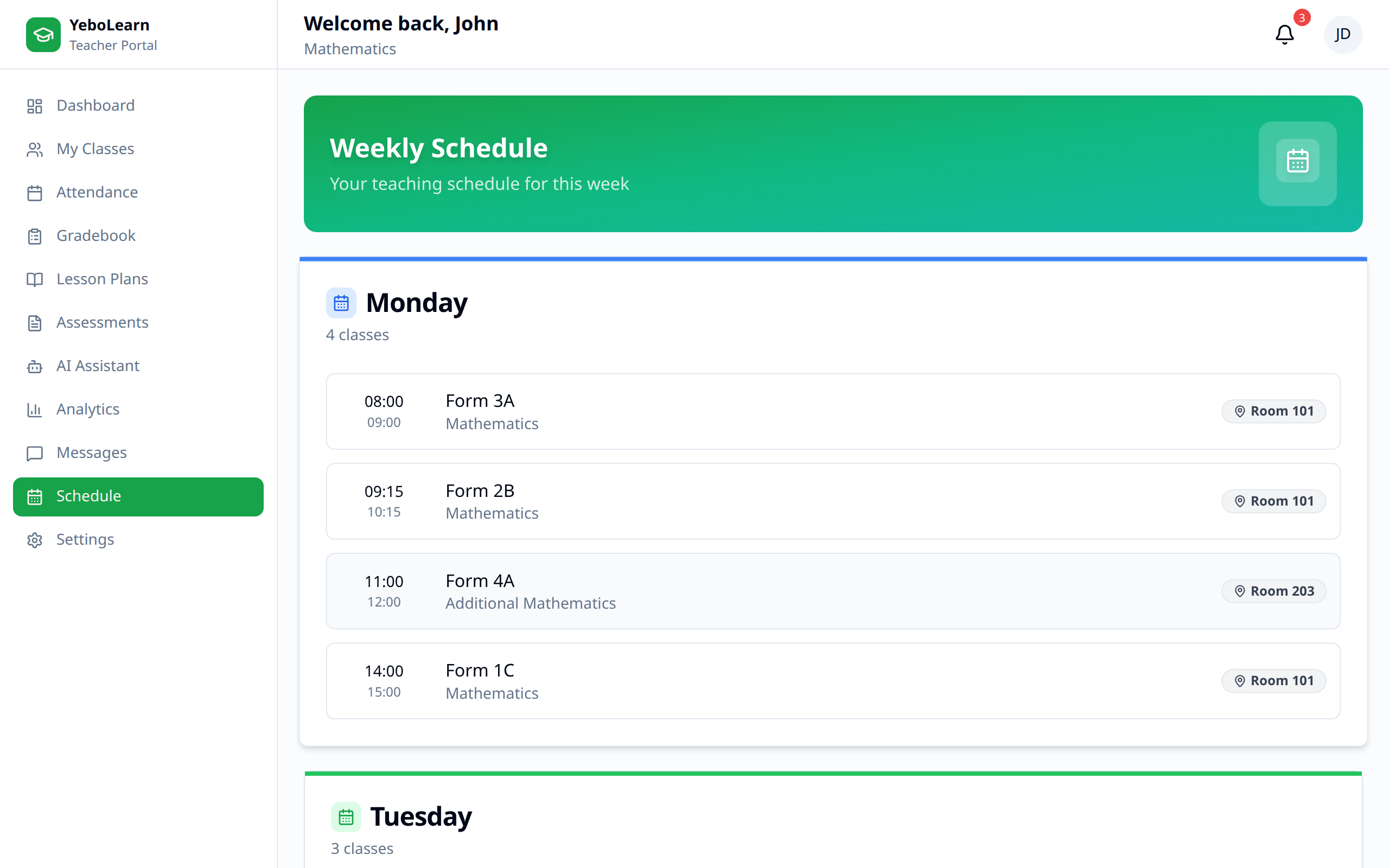
The Weekly Timetable
The timetable is laid out as one column per day, Monday to Friday. Saturday and Sunday only appear if that class has lessons scheduled on them. Days with nothing scheduled read "No classes".
Lesson Cards
Each scheduled period shows:
| Field | Description |
|---|---|
| Subject | The subject taught in that period |
| Time | Start and end time, e.g. 08:00 – 08:45 |
| Room | The room, when one has been set |
Periods are listed in start-time order within each day.
Read-Only
The timetable is view-only for teachers. Your school administrator builds and changes it. If a period is missing, in the wrong place, or in the wrong room, ask your admin to update it.
If a class has no timetable at all, you'll see "No timetable yet" — again, that's for your admin to set up.
Switching Classes
Use the Class dropdown to move between the classes you teach. Each class has its own timetable, so check each one to build up your full week.
The "View My Classes" link at the bottom of the page takes you to your class list.
If You Have No Classes
If the page says you're not assigned to any classes yet, your school admin hasn't assigned you to a class subject. Once they do, its timetable appears here.
Tips for Schedule Management
- Check daily - Review your timetable each morning
- Check every class - The timetable is per class, so switch through them at the start of term
- Report problems early - Only your school admin can correct the timetable
- Plan around it - Use free periods for marking and lesson planning