
Lessons
The Lesson Plans section generates curriculum-aligned lesson plans with AI and keeps them in your own library.
Accessing Lessons
- Click "Lesson Plans" in the sidebar navigation
- Your saved plans are listed as cards
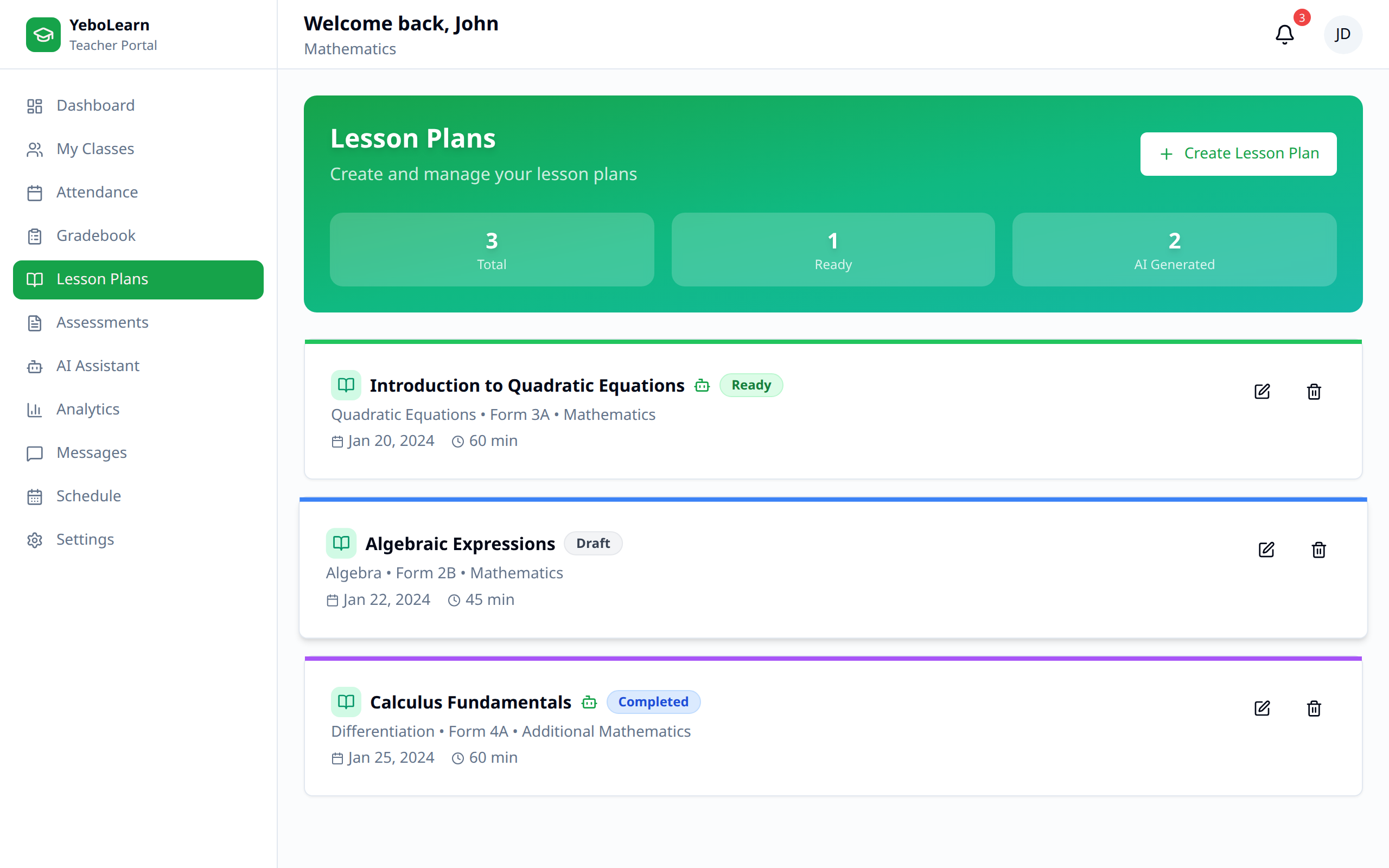
Lesson Planning Overview
Why Use Lesson Plans
- Start faster - Let AI draft the structure, then make it yours
- Stay organized - Keep every plan in one library
- Reuse - Open an old plan and adapt it for the next class
Creating a Lesson Plan
Starting a New Lesson
- Click "New lesson plan"
- Fill in the lesson details
- Click "Generate with AI"
- Review the plan, give it a title, and click "Save lesson plan"
Lesson Details
| Field | Description |
|---|---|
| Subject * | e.g. Mathematics |
| Topic * | e.g. Fractions |
| Grade Level * | Grade R to Grade 7, or Form 1 to Form 5 |
| Duration (minutes) * | Between 15 and 240 minutes |
| Learning Objectives | Optional — one objective per line |
| Curriculum Framework | Optional — e.g. Eswatini National Curriculum |
Fields marked * are required, and the "Generate with AI" button stays disabled until they're all filled in correctly.
Learning Objectives
Define what students will learn:
- Use clear, measurable objectives
- Put one per line
- Example: "Students will be able to solve quadratic equations"
Leave the box empty and the AI proposes objectives for you.
The Generated Plan
Generation takes a few seconds. The result is laid out in sections:
| Section | Purpose |
|---|---|
| Learning Objectives | What students should be able to do |
| Materials & Resources | What you need for the lesson |
| Introduction / Hook | How to open the lesson |
| Main Activity | The core teaching |
| Assessment | How to check understanding |
| Conclusion / Summary | How to wrap up |
| Homework | Follow-up work, when the plan includes it |
If the result isn't quite right, click "Regenerate with AI" for a fresh draft, or "Clear result" to start over. If generation fails, a red panel explains why and offers "Try again" — nothing is invented in place of a real plan.
Saving to Your Library
- Enter a Title (it's pre-filled from the generated plan, but you can change it)
- Click "Save lesson plan"
You're returned to the Lesson Plans list with the new plan on it.
Managing Lessons
Lesson List
Each card shows:
- The plan title
- Subject, grade level, and topic
- Duration, and the date it was last updated
Editing Lessons
- Click "Edit" on the plan card
- Change the header fields, or edit the plan itself — there's a Plan heading, one item per line for Learning Objectives and Materials & Resources, and a text box for each of Introduction / Hook, Main Activity, Assessment, Conclusion / Summary, and Homework
- Click "Save changes"
While editing you can also click "Regenerate with AI" for a new draft, or "Revert" to go back to the saved version.
Deleting Lessons
- Click the bin icon on the plan card
- Confirm in the "Delete lesson plan?" dialog
Deleting is permanent.
Best Practices
- Be specific - A precise topic produces a far better plan than a broad one
- Add your objectives - Supply them when you have curriculum wording to hit
- Name the framework - The curriculum framework field keeps plans aligned to your syllabus
- Always review - Check the AI's plan against what your class actually needs before teaching it
- Reuse what works - Editing a saved plan updates that same plan, so generate a fresh one when you want to keep the original as well
TIP
Set the duration to match your real period length — the AI paces the activities around it.