
Dashboard
The Dashboard is your home screen in the Teachers App. It shows what you've been assigned to teach and gives you one-click access to attendance and the gradebook.
:::note If your Institution Type in Settings is set to ECD Center, this page shows the ECD Overview instead — a per-child developmental snapshot rather than the class-subject table described below. :::
Overview
When you log in, the Dashboard displays:
- A welcome banner with today's date and your totals
- Quick actions - Fast access to classes, attendance, and the gradebook
- Your subject assignments - Every class and subject you teach, in one table
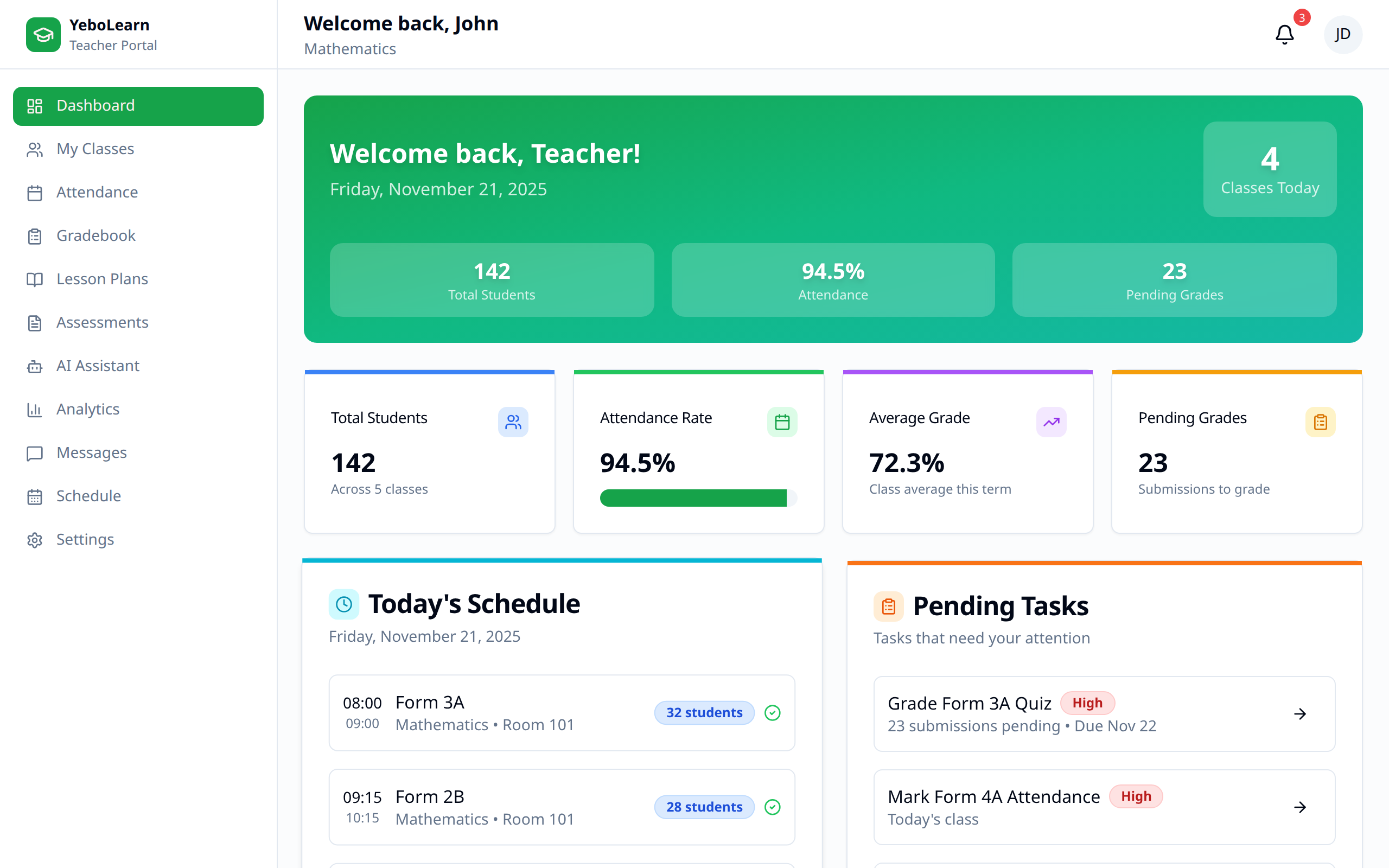
Dashboard Sections
Welcome Banner
The coloured banner at the top greets you by name and shows today's date, plus your totals:
| Count | Meaning |
|---|---|
| Classes | Distinct classes you teach |
| Students | Total students across those classes |
| Subjects taught | Number of class-subject assignments |
| Day and date | Today |
Quick Actions
Three cards sit under the banner:
| Card | Where it takes you |
|---|---|
| My classes | Your class list, rosters, attendance, and grades |
| Take attendance | Today's attendance marking screen |
| Open gradebook | Saved marks by class and subject |
Your Subject Assignments
One row per (class, subject) you teach:
| Column | Description |
|---|---|
| Class | Class name |
| Subject | Subject you teach in that class |
| Grade | Grade level, if set |
| Students | Number of students in the class |
| Year | Academic year |
| Actions | Grade, Attendance, and an arrow to open the class |
Click Grade to jump straight to mark entry for that class and subject, Attendance to mark that class today, or the arrow to open the full class page.
If the Dashboard is Empty
If you see "No class assignments yet", your school admin hasn't assigned you to a class subject (for example "Grade 5A Math") yet. Until they do, attendance and mark entry aren't available to you. Ask your admin to add the assignment.
Top Bar
Above every page you'll find:
- Your name and department on the left
- The sync status chip, showing Synced, Syncing, or Offline along with how many items are still queued — click it to see and retry individual queued items
- Your profile picture, with Profile, Settings, and Log out in the dropdown (Profile and Settings both open the Settings page)
Tips for Effective Use
- Check daily - Review your dashboard each morning
- Use quick actions - Save time with the shortcuts instead of navigating the menu
- Work row by row - The assignments table is the fastest way to grade or mark one class at a time
- Watch the sync chip - Make sure it reads Synced before closing the browser after entering marks