
Classes
The My Classes section shows every class subject you've been assigned, with student rosters and shortcuts to attendance and marks.
Accessing Classes
- Click "My Classes" in the sidebar navigation
- Your assigned class subjects are displayed
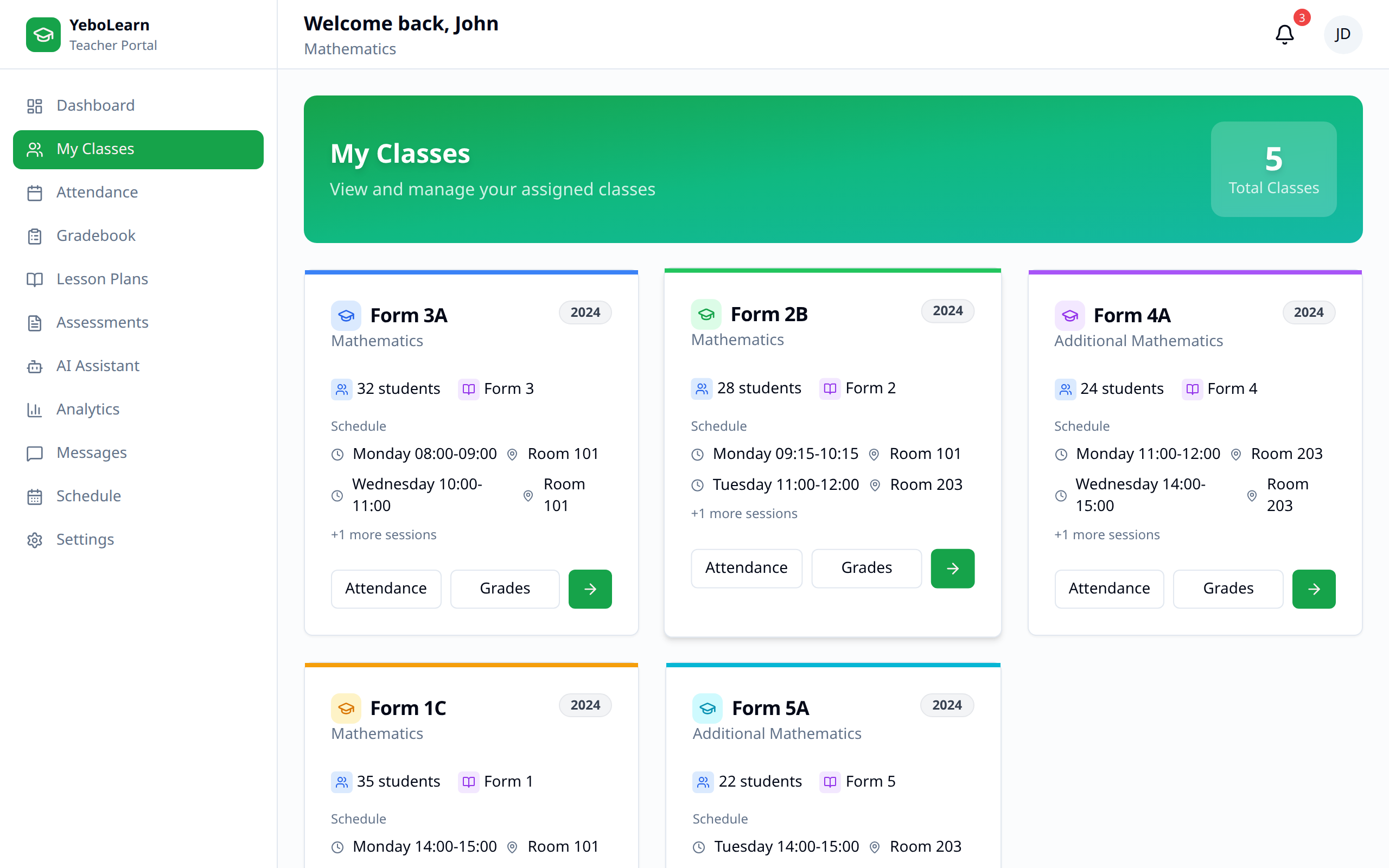
Classes Overview
Class List
You get one card per class-subject assignment, so a class you teach two subjects in appears twice — once for each subject. The banner at the top counts your assignments and the number of distinct classes they cover.
Class Cards
Each card shows:
| Information | Description |
|---|---|
| Class Name | Name of the class |
| Subject | The subject you teach in it |
| Academic year | Shown as a badge, when set |
| Students | Number of students enrolled |
| Grade level | Shown when set |
Each card has three buttons: Attendance (mark that class today), Grades (enter marks for that class and subject), and an arrow that opens the class page.
If you see "You're not assigned to any subjects yet", ask your school admin to assign you to a class subject.
Viewing Class Details
Accessing a Class
- Click the arrow button on any class card
- The class page opens
Class Information
The class page header shows the class name, its grade level and academic year, and two buttons — Attendance and Gradebook — that act on the whole class.
Below that are two tabs:
- Roster — the students enrolled in the class
- My subjects — the subjects you personally teach in this class
Student Roster
Viewing Students
The Roster tab lists every enrolled student with:
- Their initials
- Student name
- Admission number
If the roster is empty, the class has no students yet — your school admin adds or imports them.
My Subjects
The My subjects tab lists the subjects you're assigned to teach in this class. Each row has an "Enter grades" button that opens mark entry for that subject.
If it says you're not assigned to any subjects in this class, your admin needs to add the assignment before you can enter marks.
Class Features
Quick Access
From a class you can reach:
| Feature | How |
|---|---|
| Attendance | Attendance button in the class header, or on the class card |
| Gradebook | Gradebook button in the class header |
| Mark entry per subject | "Enter grades" on the My subjects tab |
For performance figures — class average, attendance rate, pass rate, and at-risk students — use the Analytics page and pick the class there.
Per-Student Profile
The app also has a detailed profile for a single student — overall average, class rank, a grades-over-time chart, a per-subject breakdown, recent grades, and the last 30 days of attendance including a day-by-day strip for the last week. As of this writing it isn't linked from the roster or anywhere else in the app, so there's no button to click through to it yet.
Tips for Class Management
- Know your students - Review rosters at term start
- Monitor regularly - Check class performance weekly in Analytics
- Identify struggles early - The at-risk list in Analytics flags low marks and poor attendance
- Ask your admin early - Missing students or subjects are fixed on the school admin side
- Communicate - Use Messages to reach parents and guardians