
Authentication
This guide covers how to access your YeboLearn Teachers App account securely.
Login
How to Login
- Navigate to the Teachers App login page — the card is headed Teacher Portal
- Enter your Email
- Enter your Password
- Click "Sign In"
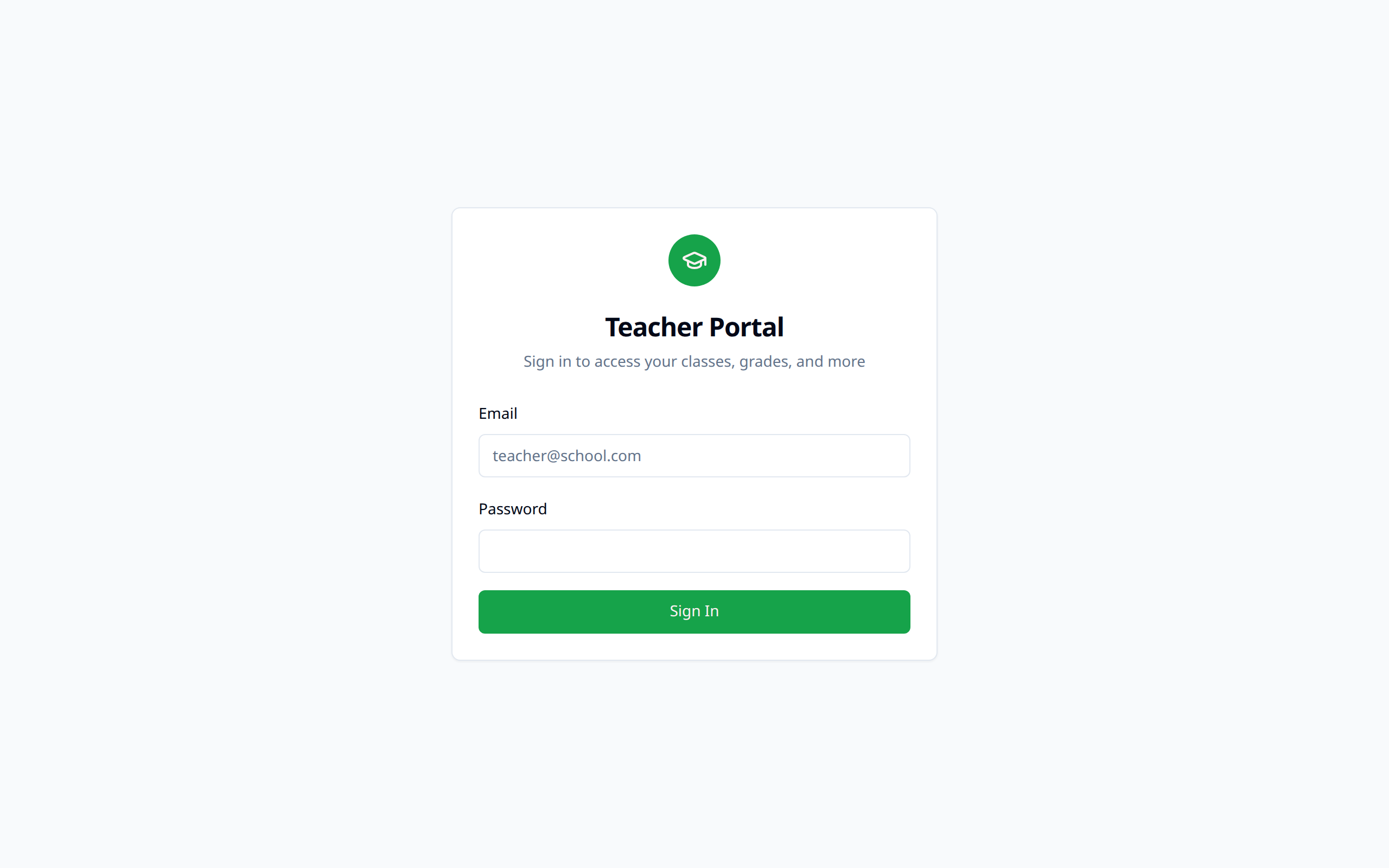
If the details are wrong, or the account isn't a teacher account, the error appears in red above the form.
Trying the Demo
If you just want to look around before your school account is ready, the login page offers a demo: click "Use demo credentials" and then "Sign In". The demo runs on sample data — nothing you do there touches your school.
First-Time Login
Your school administrator sets your account up in one of two ways.
By invite link — you receive an email with a link. Opening it shows a "Welcome to" page naming your school, where you fill in:
- First name and Last name
- Phone (optional)
- Password, and Confirm password
- Click "Activate & continue"
You're signed in automatically and land on the Dashboard.
By credentials — your admin gives you an email and password to sign in with directly.
Forgotten Password
There's no self-service password reset in the Teachers App. If you can't sign in, ask your school administrator to reset your password or send you a fresh invite link.
Password Requirements
When you set your password on the invite page, it must include:
- At least 8 characters
- One uppercase letter
- One lowercase letter
- One number
Logging Out
To log out:
- Click your profile picture in the top right
- Select "Log out" from the dropdown
WARNING
Always log out when using shared or public computers to protect student data.
Security Best Practices
- Never share your credentials
- Use a unique, strong password
- Log out after each session on shared devices
- Report suspicious activity to your administrator
Account Security
As a teacher, you have access to sensitive student information. Maintain security by:
- Keeping your password confidential
- Not leaving your session unattended
- Reporting any unauthorized access immediately
:::note If you've been offline for a long stretch, the status chip in the top bar may show "Sign in again". Your queued marks are safe — sign in again and they finish syncing. :::