
Staff
The Staff section allows you to manage teachers and other staff members, including their accounts, roles, and class assignments.
Accessing Staff
- Click Staff in the sidebar navigation
- View the staff list
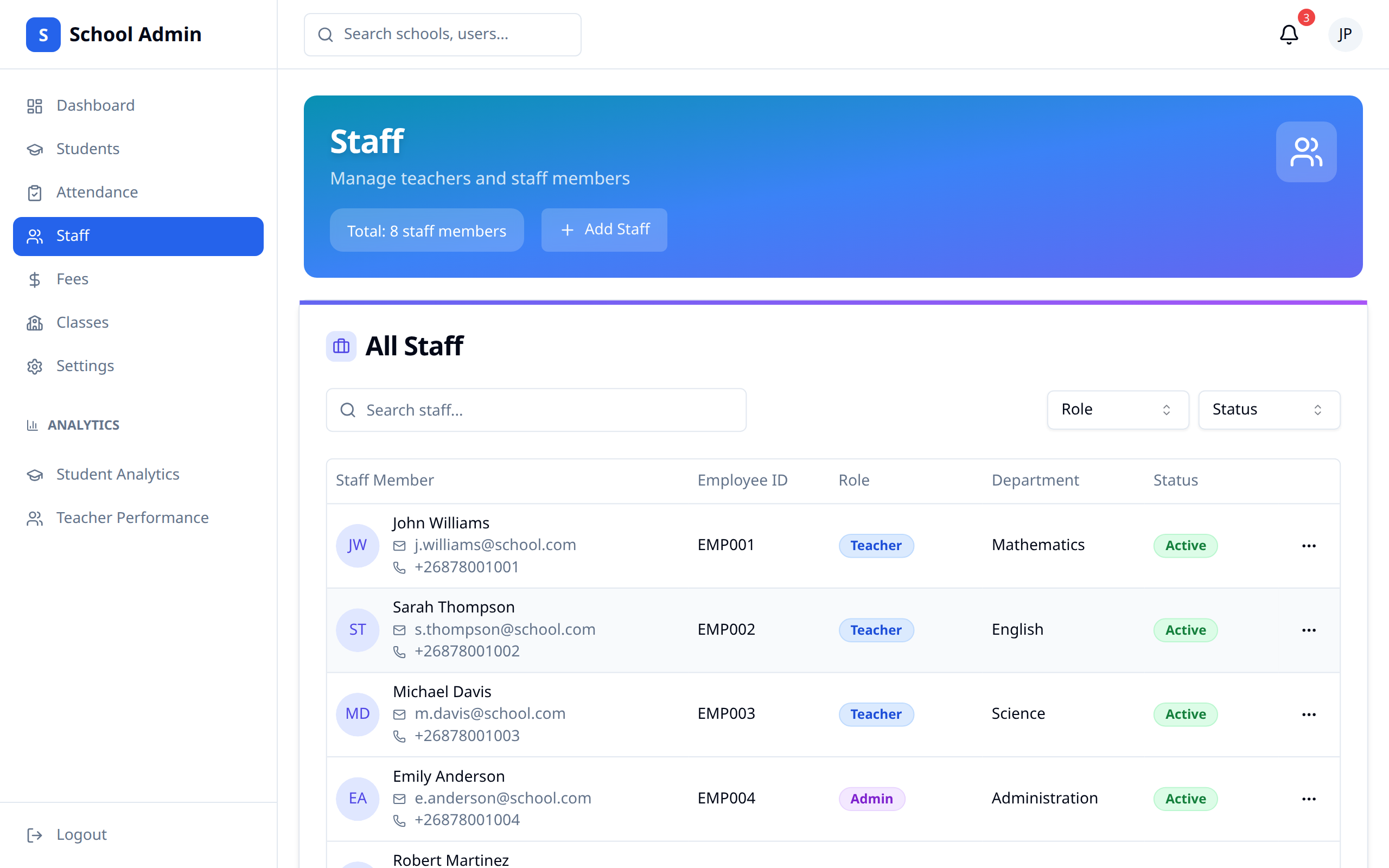
Staff List
Overview
The All Staff table shows one row per person:
| Column | Contents |
|---|---|
| Staff Member | Initials, name, email and phone |
| Role | Teacher, Principal, School Admin or Finance |
| Employee # | Employee number, where one is set |
| Specializations | Subjects a teacher specialises in |
| Status | Active or inactive |
The header above the table shows the total staff count. If no one has been added yet, the table is replaced with a No staff yet message and an Add Staff shortcut.
Filtering
The Status dropdown offers All Status, Active and Inactive.
Searching
Type in the Search staff... box to find someone by name or email.
Paging
When there are more staff than fit on one page, Previous and Next buttons appear under the table.
Adding Staff
New Staff Member
- Click Add Staff
- Fill in the form
- Click Add Staff Member
- Copy the temporary password shown, then click I've copied — continue
TIP
The form doesn't mark First Name, Last Name or Email with an asterisk, but the account can't actually be created without them — fill them in even though nothing forces you to.
Personal Information
| Field | Description |
|---|---|
| First Name | Staff member's first name |
| Last Name | Staff member's last name |
| Email address (used for login) | |
| Phone | Contact number |
| Date of Birth | Birth date |
| Gender | Male, Female or Other |
| Address | Home address |
Employment Details
| Field | Description |
|---|---|
| Employee ID | Optional employee number |
| Hire Date | Defaults to today |
| Role | See the roles below |
| Department | e.g. Science, Languages |
| Qualifications | Degrees, certifications, etc. |
Emergency Contact
Contact Name and Contact Phone.
Role Assignment
The Role dropdown offers:
| Role | Access |
|---|---|
| Teacher | Their own classes, grades and attendance |
| Principal | School-wide access |
| School Admin | Full admin access |
| Accountant / Finance | Finance-oriented access |
| Librarian | Treated as a School Admin account |
| Nurse | Treated as a School Admin account |
| Other | Treated as a School Admin account |
The temporary password
After you submit, a dialog shows a one-time temporary password for the new staff member.
WARNING
This is the only time the password is shown. Copy it and pass it on to the staff member in person, on WhatsApp, or however you normally communicate. The I've copied — continue button stays disabled until you press Copy.
They should change it when they first log in.
Editing Staff
Updating Staff Information
- Click the staff member's row, or choose View / Edit from the ⋯ menu
- Update the fields you need
- Click Save Changes
Save Changes stays disabled until you actually change something.
What you can edit
First Name, Last Name, Email and Phone are editable on this screen, though normally staff members keep those current themselves in their own account — use this only to correct something on their behalf.
You can also edit:
- Role — Teacher, Principal, School Admin, Finance. Switching someone to Teacher creates their teacher record if they don't already have one; switching away and back again preserves it, so historical grades stay intact.
- Status — Active or Inactive
- Employee Number — teachers only, at least 3 characters when filled in
- Specializations — teachers only, a comma-separated list of subjects
Class Assignments
Teachers aren't assigned to classes from the Staff page. Do it from the class instead:
- Open Classes and click the class
- Go to the Subjects & teachers tab
- Set the Homeroom teacher for the class, and pick a teacher for each subject
- Click Save
See Classes for the full workflow.
Staff Status
| Status | Description |
|---|---|
| Active | Currently employed |
| Inactive | No longer employed |
Deactivating Staff
When a staff member leaves:
- Open their record
- Change Status to Inactive
- Click Save Changes
The Delete Staff button does the same thing — it deactivates the account rather than erasing it, so their history is preserved.
WARNING
Deactivating staff removes their system access.
Best Practices
- Verify information - Ensure accuracy
- Assign appropriate roles - Match access to responsibilities
- Hand over the temporary password immediately - it can't be shown again
- Update promptly - Reflect changes immediately
- Review regularly - Check for inactive accounts