
Report Cards
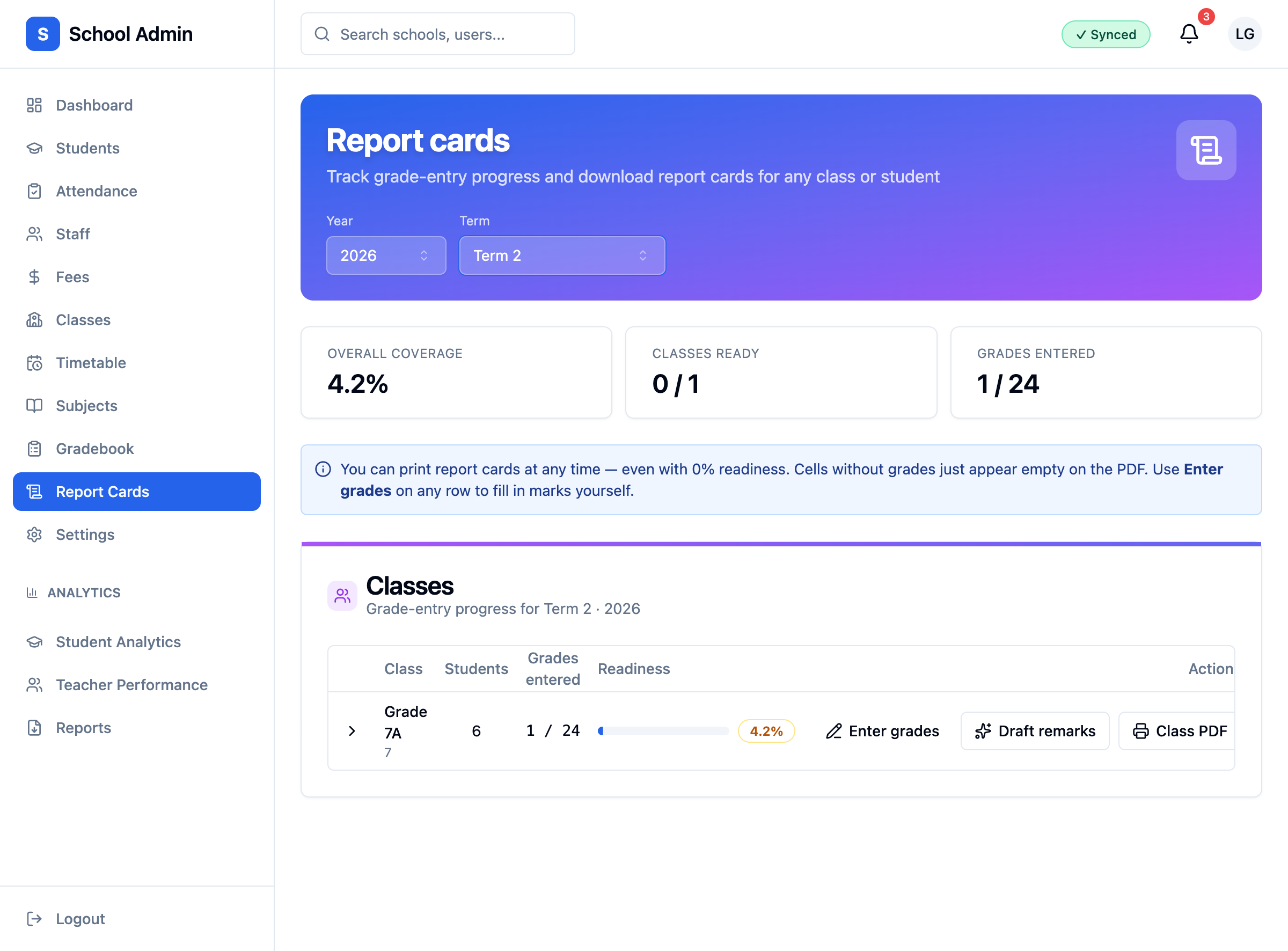
The Report Cards page shows how far along grade entry is for each class, and lets you download report cards for a whole class or one student.
TIP
This page covers the school admin screen. For how report cards work end to end — including what teachers do and how parents get theirs — see the Report Cards guide.
Accessing Report Cards
- Click Report Cards in the sidebar navigation
- Pick the Year and Term at the top
The year and term default to your school's current academic year and whichever term today falls inside. If no terms exist for the year you pick, the page tells you to add one in Settings first.
Readiness Summary
Three tiles sit under the header:
| Tile | Description |
|---|---|
| Overall coverage | Percentage of expected grades that have been entered |
| Classes ready | How many classes are fully graded, out of the total |
| Grades entered | Grades entered against grades expected |
The Classes Table
One row per class:
| Column | Contents |
|---|---|
| Class | Class name and grade level |
| Students | How many students are in the class |
| Grades entered | Grades entered against grades expected |
| Readiness | A progress bar, plus Ready, a percentage, or No subjects |
| Actions | Enter grades, Draft remarks (see Draft Remarks Automatically), and Class PDF |
A class showing No subjects has no subjects assigned to it yet — fix that on the class's Subjects & teachers tab before expecting grades. See Classes.
If the table can't load, it shows an error with a Retry button. If there are no classes for the term you picked, it says so instead of showing an empty grid.
Downloading Report Cards
For a whole class
Click Class PDF on the class row. You get one PDF with a page per student.
For one student
- Click the arrow at the start of a class row to expand it
- Find the student in the list
- Click Report card
TIP
You can print report cards at any time, even at 0% readiness. Cells without grades simply appear empty on the PDF.
Entering Missing Grades
Enter grades on a class row opens the Gradebook for that class with the term and year already set, so you can fill in marks yourself rather than waiting on a teacher. The button is unavailable for classes with no subjects assigned.
Remarks
Every report card can carry a class teacher's remark, a principal's remark and a conduct grade — filled in by hand, or via Draft Remarks Automatically for the teacher's remark.
- Expand the class
- Click Remarks on a student
- Fill in what you need and save
| Field | Notes |
|---|---|
| Class teacher's remark | Up to 500 characters |
| Principal's remark | Optional, up to 500 characters |
| Conduct grade | Excellent, Very Good, Good, Fair, Poor, or — Not set — |
Nothing here is required — leave any field blank and save.
WARNING
Remarks are saved against the term and year selected at the top of the page. A remark saved under Term 1 will not appear on a Term 2 report card. The Remarks button stays unavailable until a term is picked.
Teachers can write the same remarks from their own gradebook, and both dashboards edit the same record — whichever save happens last is the one that sticks. See the Report Cards guide for the details.
Draft Remarks Automatically
Instead of writing every class teacher's remark by hand, YeboLearn can draft them for you from each learner's actual marks — their overall performance, strongest subject, and one growth area. You stay in control: every drafted remark is editable before anything is printed.
How to use it
- Go to Report Cards and pick the Year and Term at the top
- Find the class in the table and click Draft remarks (the ✨ button next to Class PDF)
- Wait a few seconds — you'll see a message like "Drafted 24 remarks for Grade 10A"
- Expand the class and open Remarks on any learner to read or edit their remark
- When you're happy, click Class PDF — the remarks print under Class Teacher's Remark as usual
What it does — and doesn't do
- Only learners with marks get a remark. The button is unavailable until the class has grades entered for the selected term — enter marks first, then draft remarks.
- Your own writing is never touched. Drafting only fills in remarks that are currently empty. If you or a teacher already wrote a remark for a learner, it stays exactly as written — clicking Draft remarks again will not replace it.
- Run it again any time. After entering marks for more learners, click the button again and only the learners still missing a remark get one.
- Principal's remark and conduct grade stay manual. The draft covers the class teacher's remark only.
Review before printing
Drafted remarks are based on each learner's real results, but read through them the same way you would remarks a colleague drafted for you — a quick pass per class is usually enough, and any wording you change is kept.
Releasing Report Cards to Families
Downloading a PDF is for your own printing. Parents and students only see a term's grades in their dashboards once you release that term.
- Open Analytics → Reports
- Go to the Report Cards tab
- Scroll to Release report cards to parents and students
- Click Release next to the term
Unrelease takes it back if you need to correct something.
Before You Print
Report cards pull from several places. Check these first:
| Input | Where you set it |
|---|---|
| Term name and dates | Settings → Academic |
| Grading scale and pass mark | Settings → Academic |
| School logo and brand colour | Settings → General |
| Which subjects each class takes | Open a class → Subjects & teachers |
| Students not taking a subject | Open a class → Student enrolment |
| Marks | Entered by teachers, or by you via Enter grades |
| Attendance | The Attendance page |
Best Practices
- Watch readiness through the term - don't discover a 40% class the week cards are due
- Fix "No subjects" classes early - no subjects means no grades are even expected
- Set the term before writing remarks - remarks are term-specific
- Release only when grades are final - and unrelease if you need to correct