
Dashboard
The Dashboard provides a comprehensive overview of your school's status, key metrics, and quick access to common administrative tasks.
Overview
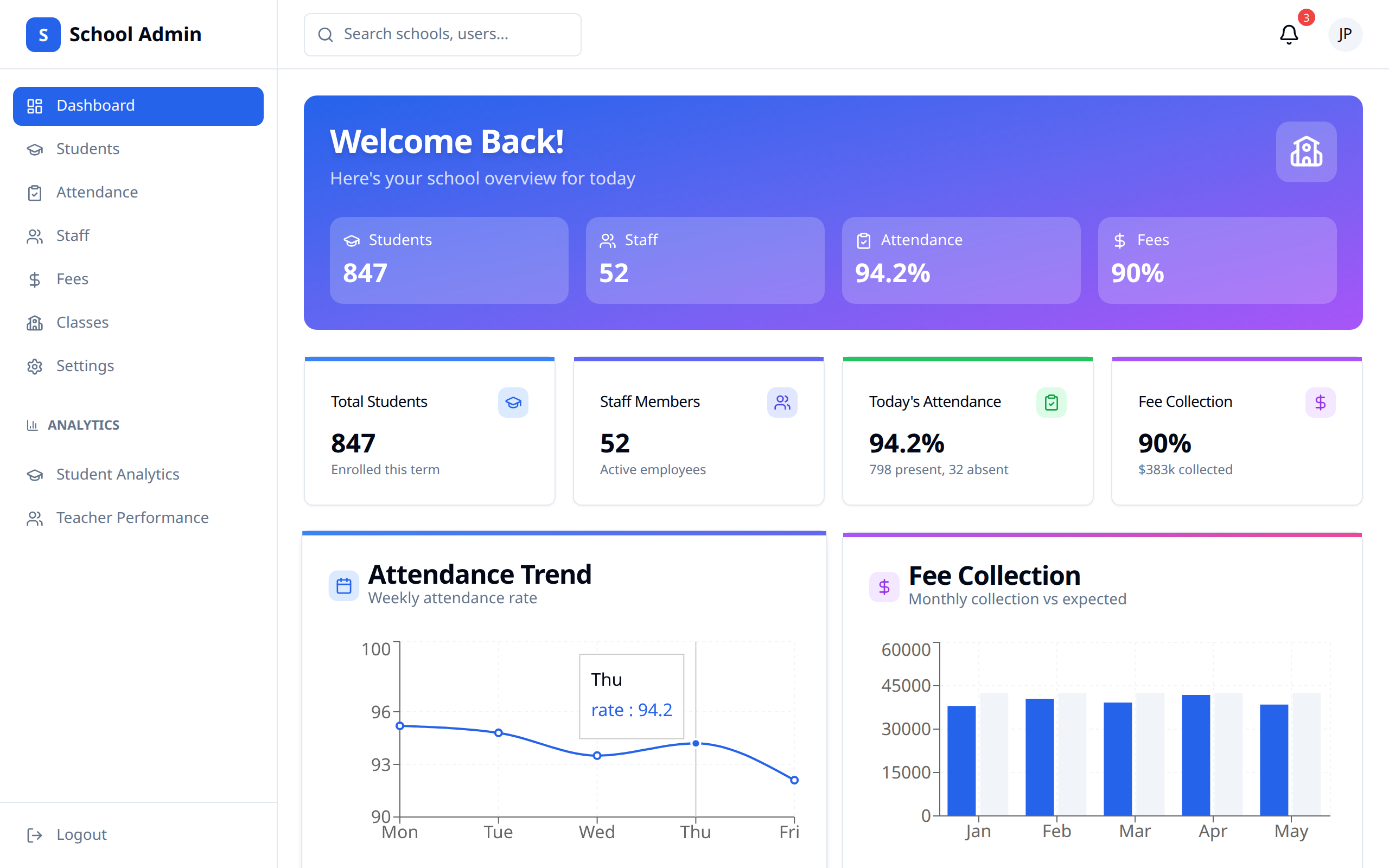
When you log in, the Dashboard displays, top to bottom:
- Setup progress - what's still missing while you're getting started
- A few next steps - a short nudge into daily use, shown for about a week after setup is done
- Report card readiness - how far along grade entry is this term
- Key metrics - student count, staff count, attendance, classes
- Attendance trend - a daily attendance chart
- Quick actions - shortcuts to the most common tasks
A brand-new school starts mostly empty
Right after setup, expect: the Set up your school checklist near 0/7, the Report card readiness card hidden (it only appears once a term exists), the metrics cards reading 0, and the attendance trend asking for two days of data before it draws a line. Work through the setup checklist first — the rest of the dashboard fills in as you do.
Dashboard Sections
Set up your school
Until you finish setup, a Set up your school card sits at the top: a progress bar with a count (for example 3/7), and a checklist — School profile, Academic year & terms, Subjects, Classes, Teachers, Students, Grades entered. Each item links to the page that completes it, and the Start wizard / Continue setup button takes you back into the setup wizard. The card disappears once setup is marked complete.
A few next steps
For about a week after you finish setup, an A few next steps card nudges you into daily use with four items: invite your first teacher, take today's attendance, enter your first grade, and tell parents to install the app. Items you've already done show ticked and struck through; "tell parents" always stays open since it isn't something the dashboard can measure. Once you've done the other three, the card's heading changes to a congratulations message. Close it with the ✕ — dismissing is permanent, so it won't reappear later on this device or any other.
Report card readiness
This card shows grade-entry progress for your school's current term: Overall coverage, Classes ready, and Classes with no grades, plus a per-class list with a progress bar and the same Ready / No subjects / percentage badges used on the Report Cards page. Open reports jumps to the Reports page.
The widget follows whichever term contains today's date; if none does, it falls back to the next upcoming term, or otherwise the most recent past one. It's hidden completely until your school has at least one term set up.
School Metrics
At-a-glance statistics across the top of the page and in the cards below it:
| Metric | Description |
|---|---|
| Total Students | Enrolled this term |
| Staff Members | Active employees |
| Today's Attendance | Today's attendance rate, with present and absent counts |
| Total Classes | Across all grades |
If nobody has taken attendance yet today, Today's Attendance falls back to showing the weekly average instead of reading 0%.
Attendance Trend
A line chart of the daily attendance rate. It needs at least two days of recorded attendance before it can draw a trend — until then it says so instead of showing an empty chart.
Quick Actions
Shortcuts to common tasks:
| Action | Goes to |
|---|---|
| Take attendance | The Attendance page |
| Add student | The new student form |
| Add staff | The new staff form |
Using the Dashboard Effectively
Daily Review
Start each day by checking:
- Today's attendance
- Report card readiness during a marking period
- Anything still outstanding on your setup checklist
Weekly Review
Weekly, review:
- Attendance trends
- Fee collection progress on the Fees page
- Performance metrics under Analytics
Monthly Tasks
Monthly, examine:
- Detailed analytics
- Fee reports
- Attendance reports
Tips
- Check daily - Start with a dashboard review
- Chase grade entry early - readiness climbs slowly if teachers start late
- Monitor trends - Watch for patterns
- Use quick actions - Save time on common tasks
If the dashboard can't load
When the dashboard can't reach the server it says so and offers a Retry button rather than showing stale or made-up numbers.