
Fees
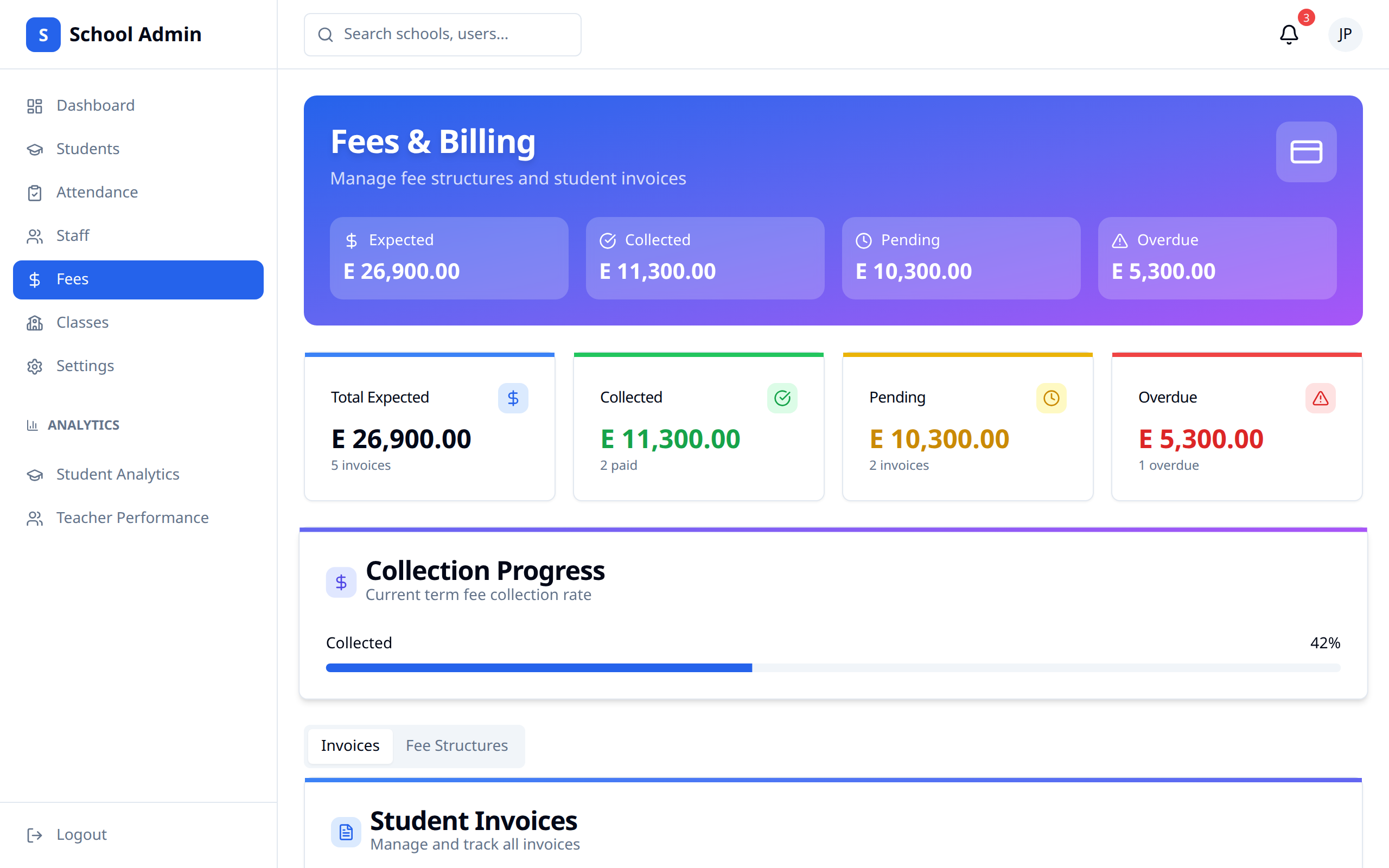
The Fees section — headed Fees & Billing in the app — is where you create fees, assign them to students or whole classes, and track what's still owed.
Accessing Fees
- Click Fees in the sidebar navigation
- View the fee list
How Fees Work Here
A fee is a charge on one student: a type, an amount, an academic year, a term, and a due date. To charge the same thing to more people, you create it once and then Assign it to another student or a whole class.
Parents and students pay through their own dashboards. This page is for setting the charges up and watching collection.
Fee Overview
Two cards sit above the list:
| Card | Description |
|---|---|
| Outstanding | Total unpaid — pending plus overdue — and how many fees that is |
| Overdue | Total past its due date, and how many fees that is |
The header shows the total number of fees. If none have been created yet, the list is replaced with a No fees yet message and a Create fee shortcut.
Creating a Fee
- Click Create fee
- Fill in the dialog
- Click Create fee
| Field | Description |
|---|---|
| Student | The student being charged |
| Type | Tuition, Books, Uniform, Transport, Meals, Activities or Other |
| Amount (SZL) | The amount charged |
| Term | Term 1, Term 2 or Term 3 |
| Academic year | Defaults to the current year |
| Due date | When payment is due |
Every field is required.
Assigning a Fee to Others
Once a fee exists, you can copy it to other students without retyping it.
- Click the ⋯ menu on the fee row
- Choose Assign to student / class
- Under Assign to, pick A student or A whole class
- Choose the student or the class
- Set the Due date
- Click Assign fee
The type, amount, academic year and term are copied across; only the due date is set fresh.
Editing a Fee
- Click the ⋯ menu on the fee row
- Choose Edit
- Change the Amount (SZL), Due date or Status
- Click Save changes
Deleting a Fee
Choose Delete from the ⋯ menu and confirm. This permanently removes that student's charge and can't be undone.
The Fee Table
| Column | Contents |
|---|---|
| Student | Name and admission number |
| Class | The student's class |
| Type | Fee type |
| Amount | Amount charged |
| Term | Term and academic year |
| Due date | When it's due |
| Status | Pending, Paid, Overdue or Waived |
| Actions | The ⋯ menu |
Payment Status
| Status | Description |
|---|---|
| Paid | Settled |
| Pending | Not yet paid |
| Overdue | Past the due date |
| Waived | Written off |
Mark a fee Waived through Edit when you're granting a bursary or writing a charge off.
Filtering
Three dropdowns sit above the table:
- Status — All statuses, or one of the four
- Type — All types, or one fee type
- Term — All terms, or a specific term
Fee Reports
Collection reports live under Analytics → Reports → Fees, where you can set a date range and an optional class, then download as PDF, Excel or CSV. See Analytics.
Fee Reminders
Whether YeboLearn sends fee reminders is controlled by the Fee Reminders toggle under Settings → Notifications. See Settings.
Best Practices
- Create one, then assign - Build a fee once and push it out to the class
- Communicate early - Inform parents of fees before the due date
- Keep statuses honest - Move fees to Paid or Waived as reality changes
- Watch the Overdue card - It's the fastest read on collection health
- Report regularly - Download a fees report each month