
Authentication
This guide covers how to access your YeboLearn School Admin App securely.
Login
How to Login
- Navigate to the School Admin login page
- Enter your Email
- Enter your Password
- Click Sign in
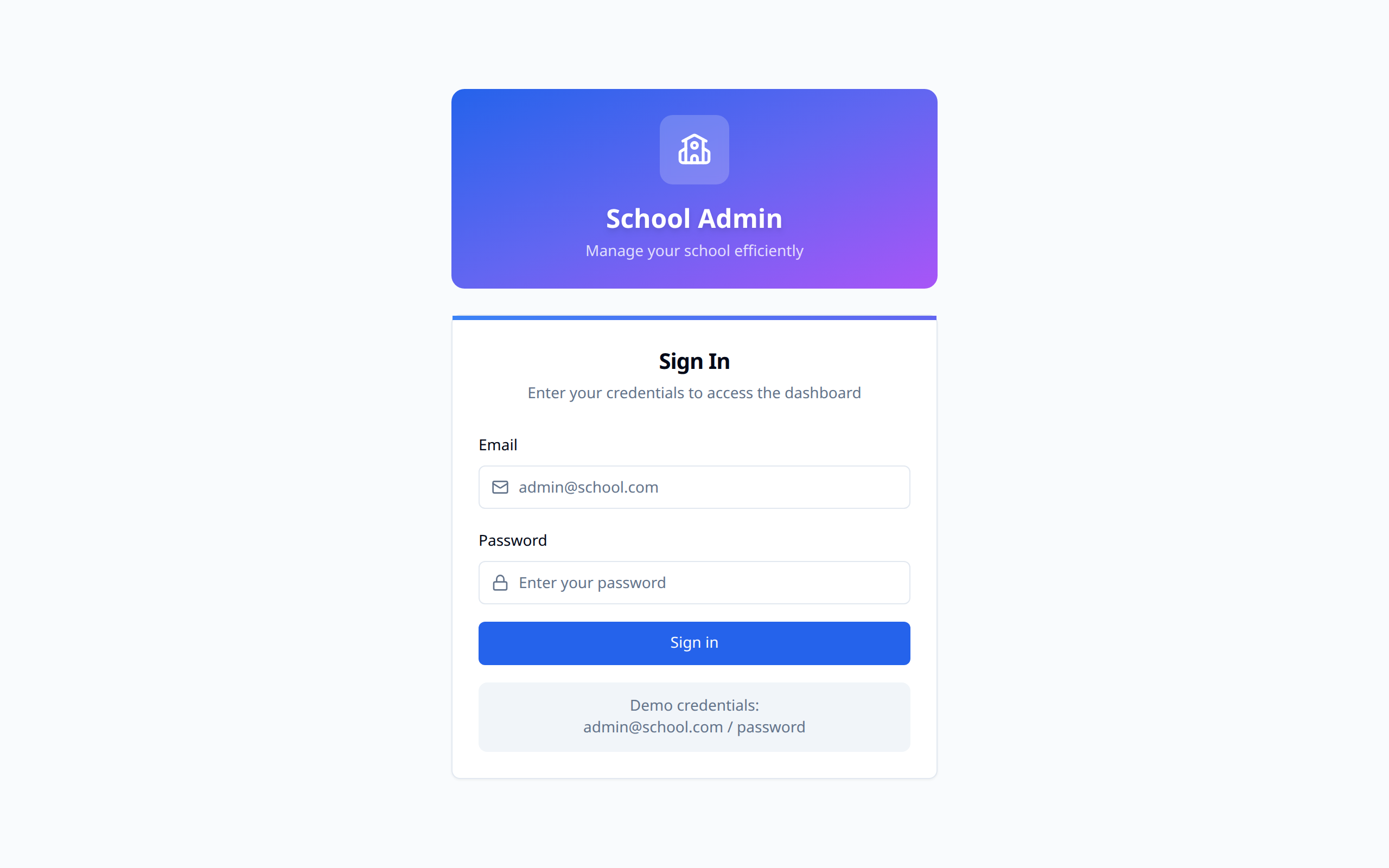
If the email or password doesn't match an account, an error message appears and you stay on the sign-in page — nothing else is submitted.
Administrator Access
School admin accounts have elevated privileges:
- Full access to student and staff data
- Ability to modify school settings
- Financial management access
- Staff account management
Trying the demo
If you want to look around before committing, click Use demo credentials on the login page. That fills in a sample account so you can explore the dashboard with example data.
Creating a School Account
If your school isn't on YeboLearn yet, click Create a school under the sign-in button.
- Enter the School name and Country
- Enter your First name, Last name and Work email
- Choose a Password and re-type it under Confirm password
- Click Create school
- You'll land on a Check your inbox screen confirming where the verification email was sent
- Click the link in the email — once verified you're taken to the setup wizard
If the email doesn't show up, check your spam folder or contact [email protected].
WARNING
Verification links can be reused only once and eventually expire. If yours no longer works, you'll see This link can't be used with the reason — ask YeboLearn support for a fresh one, or sign in directly if you already have an account.
Password Requirements
When creating your account or accepting a staff invite, your password must have:
- At least 8 characters
- An uppercase letter
- A lowercase letter
- A number
Joining an Existing School
If a colleague added you as staff, you'll get an invite link by email. Opening it shows which school and email address it's for, then lets you fill in:
- First name and Last name
- Phone (optional)
- Password and Confirm password — same rules as Password Requirements above
Click Activate & continue and you're signed in automatically and taken to the setup wizard.
WARNING
Invite links expire and can only be used once. If yours has already been claimed or has expired, you'll see This link can't be used — ask the YeboLearn team for a fresh invite, or sign in directly if you've already set a password.
If your account was created without an invite email, the admin who added you receives a temporary password for you. Ask them to pass it on — it is shown to them only once, at the moment they add you.
Session Security
Your session refreshes itself while you're working. If you've been away or offline long enough for it to expire, the sync indicator in the top bar prompts you to sign in again.
Logging Out
Click Logout at the bottom of the sidebar, or Log out in the account menu at the top right. Always log out when:
- Leaving your workstation
- Using shared computers
- Finished with admin tasks
Security Best Practices
As an administrator, you should:
- Use a unique, strong password
- Never share credentials
- Log out after each session
- Report suspicious activity immediately
- Keep your email secure
WARNING
Administrator accounts have access to sensitive student and staff data. Security is critical.
Managing Other Accounts
As admin, you can:
- Add staff members and hand them a temporary password
- Change a staff member's role
- Set a staff member's status to Inactive so they can no longer sign in