
Report Cards
This guide explains how YeboLearn report cards work end-to-end: how a school admin sets the term up, how a teacher's daily mark entry rolls into the printed PDF, how parents and students download the final card, and what to do when something goes wrong.
Pick your section:
- For school admins — get the school ready to print
- For teachers — daily mark entry
- For parents and students — find and download the report
- Architecture reference — for engineers
- Troubleshooting — fix common issues
How report cards work
A report card is generated on demand when someone clicks Download. There is no nightly job, no queue, and no stored PDF — every download regenerates fresh from the database. The pipeline pulls together five inputs:
School setup (admin)              Daily entry (teacher)
┌────────────────────────┐        ┌───────────────────────┐
│ Term name + dates      │        │ Marks (per student,   │
│ Grading scale (JSON)   │        │   per subject, per    │
│ School logo            │        │   assessment)         │
└────────┬───────────────┘        │ Subject comments      │
         │                        │ Attendance rows       │
         │                        └──────────┬────────────┘
         │                                   │
         └─────────┬─────────────────────────┘
                   │
                   ▼
        ┌─────────────────────────┐
        │ reportService           │
        │  .generateReportCard()  │
        │ — joins all five inputs │
        │ — aggregates per subject│
        │ — renders via PDFKit    │
        └──────────┬──────────────┘
                   │
                   ▼
        ┌─────────────────────────┐
        │ PDF buffer streamed to  │
        │ the browser (Download)  │
        └─────────────────────────┘
Data dependencies at a glance
| Input | Producer | Required state |
|---|---|---|
| Term (name + start/end dates) | School admin | Row in terms matching the requested term name and academic year |
| Grading scale | School admin | schools.grading_scale set (falls back to YeboLearn defaults if not) |
| School logo | School admin | schools.logo_url reachable over HTTP (PDF still renders without it) |
| Marks | Teacher | Rows in grades matching the requested term and academic_year strings |
| Attendance | Teacher / system | Rows in attendance with date falling inside the term window |
| Teacher / principal remarks | Teacher or school admin | Row in report_card_comments keyed by (school_id, student_id, term, academic_year). Optional — the boxes print empty if absent |
TIP
Term and academic year are stored on each grade row as plain text ("Term 1", "2026"). They must match exactly between entry and printing — "Term 1" and "term 1" are different terms as far as the database is concerned.
For school admins (set the school up)
You set the foundation. Without the right setup, teachers can enter marks but the printed PDF will look off — empty attendance, fallback grade scale, no logo.
Create the academic year and terms
- Open Settings and choose the Academic tab.
- Set the Academic Year (e.g.
2026). - Set the Current Term — its name (e.g.
Term 1), kind (term, semester, quarter or trimester), and start and end dates. - Click save.
The dates matter even if you only ever print marks: attendance on the report card is bounded by the term window. Without a matching term, the PDF falls back to all-time attendance and prints an italic warning.
Add each term as the year progresses
The Academic tab edits the current term. To have Term 1, Term 2 and Term 3 all available in the term dropdowns, come back and save each one as it begins.
Set the grading scale
On the same Academic tab, set your Grading scale. Each row is a grade and the minimum overall percentage that earns it — add or remove rows and rename the grades to match whatever your school runs, whether that's A–F, A*–U, 1–7, or Distinction / Merit / Pass. Two rules: every grade label must be unique, and the lowest grade must start at 0 so every score maps to something. Grades are sorted automatically when you save, so you can enter the rows in any order.
These bands are what the report card prints next to each subject's percentage.
Set the pass mark
Also on the Academic tab, set Pass Mark (%) — the overall-average percentage at which a learner passes on the mark schedule. This is separate from the grading scale above: the scale decides the letter printed per subject, the pass mark decides the overall pass/fail line.
Upload the school logo
- Open Settings and stay on the General tab.
- Upload the logo (a transparent PNG works best).
The logo is fetched over the web at the moment the PDF is built. If that fetch fails — broken link, expired URL — the card still prints, just without the logo. It is the only part of the layout treated as non-essential.
Check readiness before you print
Open Report Cards. Above the class list you'll see readiness per class: the share of subject-by-student combinations that have at least one mark recorded for the chosen term. A class at 100% is safe to print; one at 60% means marks are still missing, and those subjects will simply be absent from the printed cards.
The same readiness summary appears as a widget on your Dashboard.
Draft remarks with AI
Once a class has at least some marks entered for the term, Report Cards shows a Draft remarks button (sparkle icon) next to Enter grades and Class PDF for that class. Click it to have YeboLearn draft the class teacher's remark for every student in the class who has at least one mark that term, written from their marks — strongest and weakest subject, overall average and letter grade, days absent.
A few rules keep this safe to use:
- It only fills empty remarks. If a student already has a class teacher's remark — hand-written or drafted earlier — it's left exactly as it is. Nothing already written is ever silently overwritten.
- It only drafts the class teacher's remark, not the principal's comment or the conduct grade — those still need a human.
- Every drafted remark stays editable. Open Remarks on the student afterwards to read, adjust, or rewrite what was drafted before you print.
- Students with no marks yet are skipped, and the button itself is disabled until the class has at least one mark recorded — there's nothing true to draft for an empty gradebook.
Afterwards you'll see a confirmation such as "Drafted 24 remarks for Grade 7A — review them via each student's Remarks before printing," or, if every student already had a remark, a note that nothing was changed.
TIP
Drafting remarks uses the same AI features and monthly AI budget as other AI tools in YeboLearn, so it needs your school's AI features enabled. See School Admin → Report Cards for the school-admin walkthrough of this button.
Release report cards to parents and students
Report cards don't become visible to parents and students the moment marks are entered — a school admin or principal has to explicitly release the term first. Until then, school_admin, principal and teacher accounts can still see and print everything (they need to, to do the work); only the parent- and student-facing report card pages are held back.
To release a term:
- Open Reports and switch to the Report Cards tab.
- Scroll to Release report cards to parents and students, grouped by academic year.
- Find the term and click Release.
The status badge changes to Released, with the release date. Parents' and students' Reports pages pick this up immediately — there's no separate publish step. If you spot a mistake after releasing, click Unrelease to pull it back while you fix it; releasing again later doesn't lose anything.
TIP
Release is per term, not per student — there's no way to release one child's report card while holding another's back. If one student's marks aren't ready, finish those first rather than releasing the whole term early.
For teachers (enter marks)
Mark entry flows into report cards continuously. There is no "submit for review" step — every save is immediately part of the next print.
Open the Gradebook
- Open Gradebook in the teacher dashboard.
- Pick the class and the subject from your class-subject assignments.
You only see the (class, subject) pairs your school admin has assigned to you in Classes → Subjects & Teachers. If a subject is missing, ask your admin to assign you.
Enter exam metadata, then per-student scores
For each assessment you grade:
- Exam name (e.g.
Mid-term Exam). - Assessment type —
test,exam,quiz,assignment,project,practical, ororal. - Date.
- Max score (e.g.
100). - Fill the score for each student in the roster.
Press Save. The Gradebook posts a batch to POST /grades/bulk and the server upserts every row by ID.
Important — "absent" vs "zero"
There is no separate "absent" status on a grade. The data model is binary: a grade row exists, or it doesn't.
- No row = "not graded yet" — does not pull the student's average down.
- Score = 0 = "graded zero" — does pull the average down.
If a student missed an assessment and you want it to count as a zero, enter 0 explicitly. If you want the missed assessment to disappear from the average, leave the cell blank.
Add the teacher's and principal's remarks
Every report card has two written remarks — one from the class teacher, one from the principal — plus a conduct grade. These are the boxes at the bottom of the printed card.
Pick the term before you open the dialog
Remarks are saved against a specific term and academic year. A remark saved under Term 1 will not appear on a Term 2 report card — the box simply prints empty, with no warning. Always set the term selector first; in both dashboards the remarks control stays disabled until you do.
You can add remarks from either dashboard. Both edit the same record, so a teacher and an admin working on the same student see each other's text.
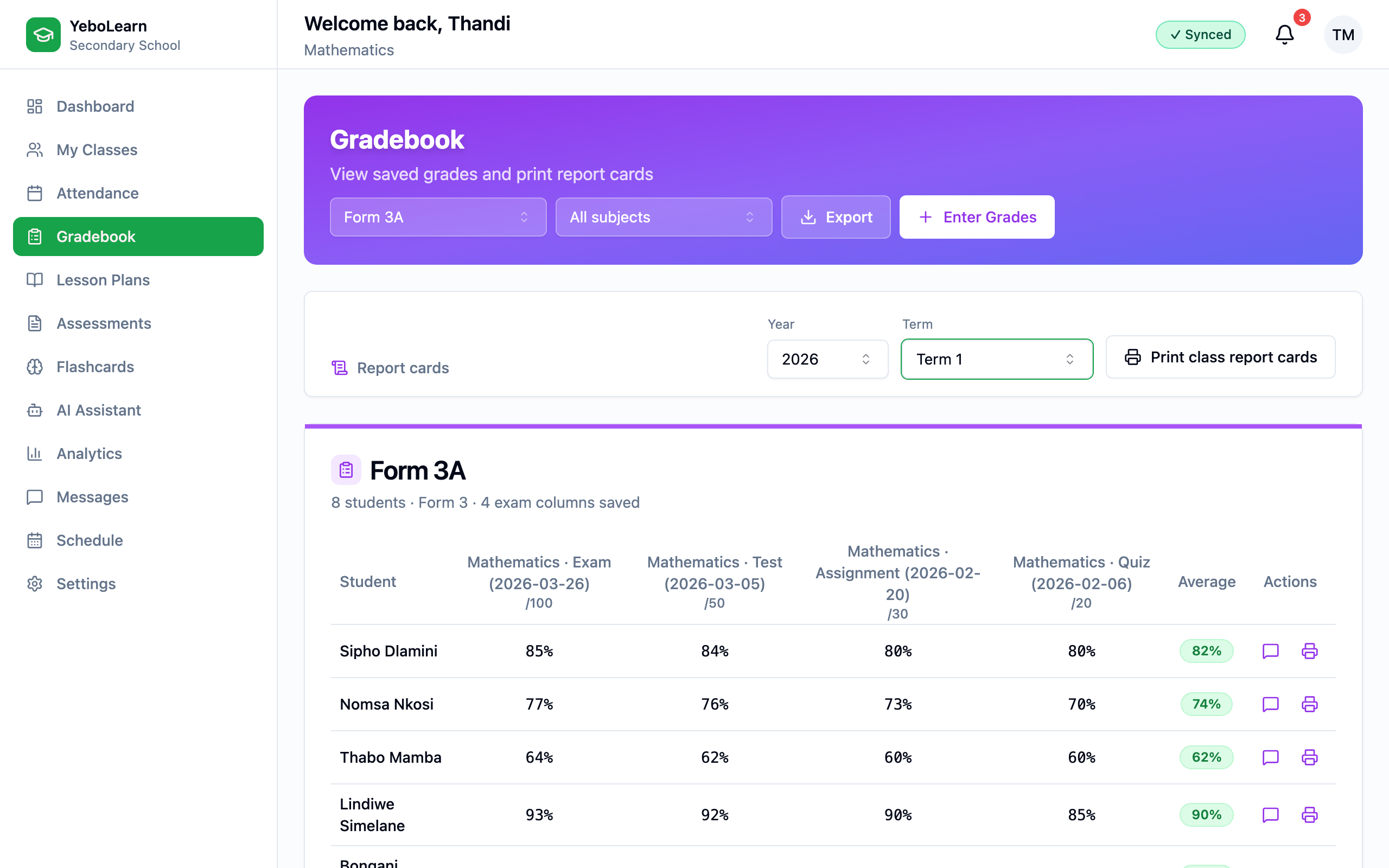
From the teacher dashboard
- Open Gradebook and select the class.
- In the Report cards panel, set the academic year and pick the term.
- In the student table, click the purple speech-bubble icon on the student's row.
The icon sits next to the printer icon at the end of each row. It stays greyed out until you have picked a term — hover over it and it will tell you so.
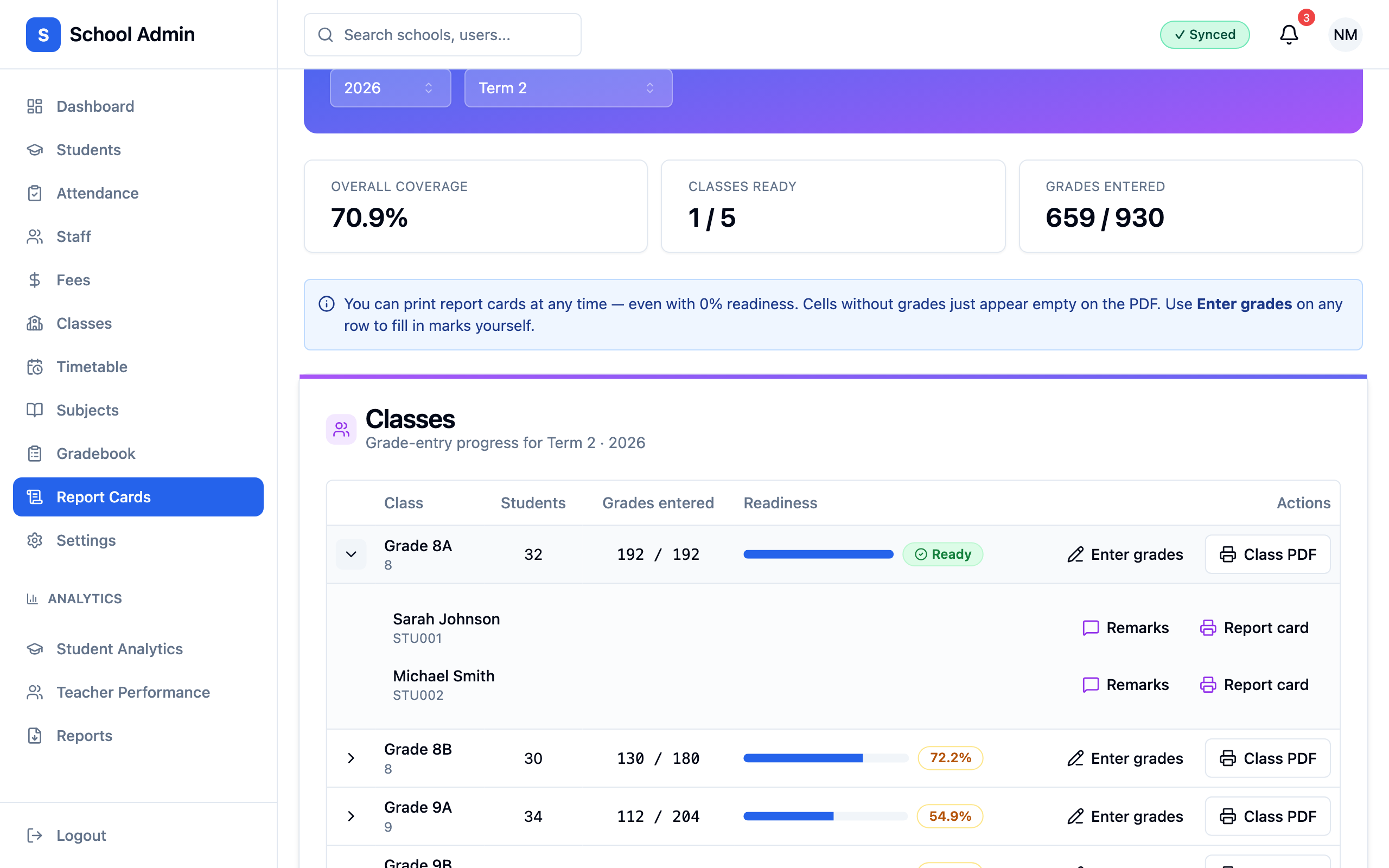
From the school admin dashboard
- Open Report Cards.
- Choose the class, term, and academic year.
- Expand the class to show the student list, and click Remarks on any student.
Filling in the dialog
The dialog has three fields — the class teacher's remark, the principal's remark, and a conduct grade. Fill in what you need and click Save; you don't have to complete all three at once.
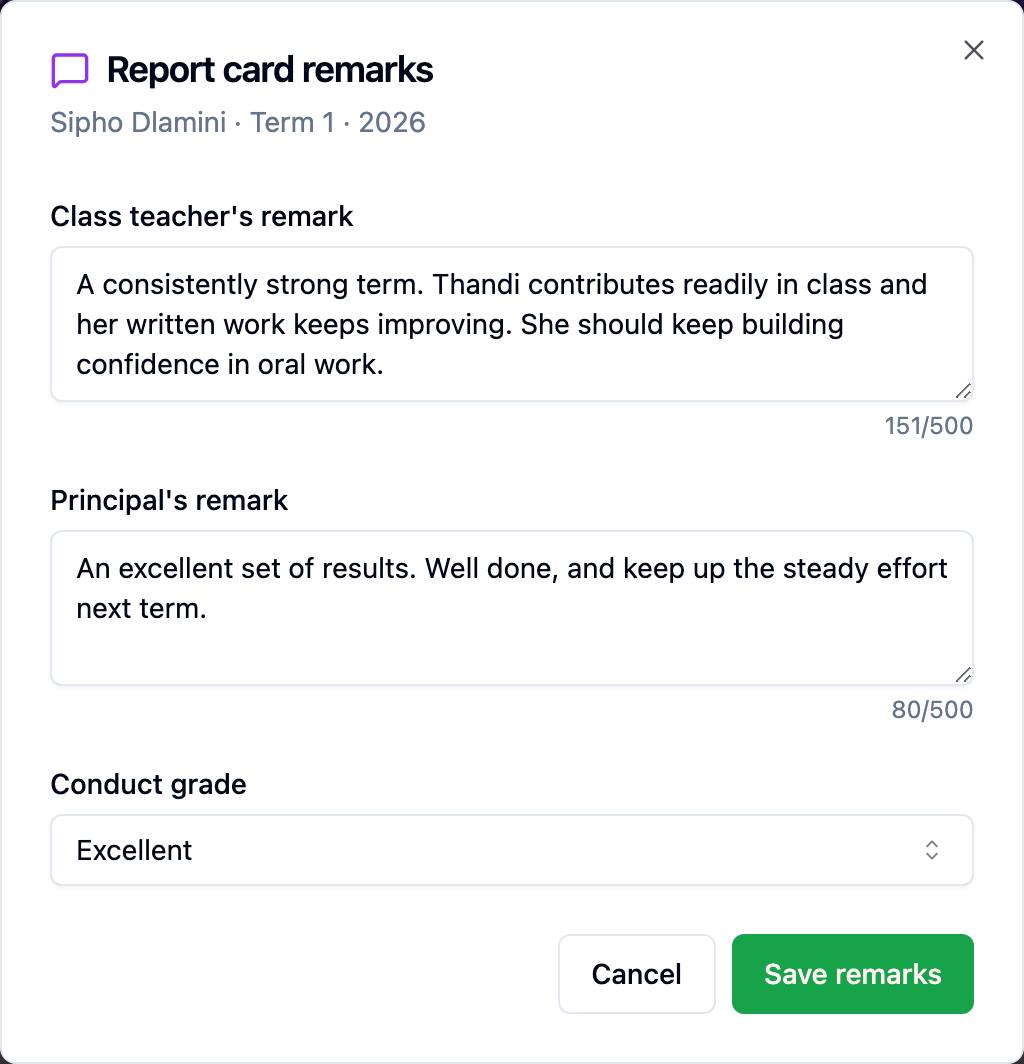
A few things worth knowing:
- Leaving a field alone keeps what's already there. Saving only the teacher's remark will not wipe a principal's remark that someone else has already written.
- To remove a remark, clear the text and save — delete the words rather than leaving the field untouched, or the previous text stays.
- Anyone who can edit grades can write either remark. There is no separate principal-only permission, so the principal's box can be filled in on their behalf. Agree internally on who writes what.
- Two people editing at once is safe. The most recent save wins rather than the two conflicting.
How remarks appear on the card
Both boxes are always printed, whether or not anything was written. An empty one reads "No comment recorded." — so a blank box means nothing was saved for that term, not that the feature is missing.

TIP
Marks save offline. If you lose network mid-class, the Gradebook queues your entries in IndexedDB and syncs when you reconnect. You'll see a small "queued offline" indicator until sync completes — if you don't see it, ask the user to refresh and try again rather than assuming success.
For parents and students (download and read the PDF)
Where to find your report card
- Students — open Reports → My Report Cards in the student dashboard. Every term that has at least one grade for you shows up as a card.
- Parents — open Children → (your child) → Report Cards. You see one list per child.
Report cards only appear once the school releases the term
Having grades on file isn't enough — the school admin has to explicitly release the term before parents and students can download that term's card. Until then, the download is refused with "Report cards for this term have not been released yet." If a term's card is missing or won't download, that's the most likely reason — ask the school when reports for that term will be released.
Download
Click Download on the term you want. The browser fetches the PDF and saves it with the school's preferred filename (e.g. report-card-student-470ec6b4-2026-Term-1.pdf). The PDF is the canonical printed artifact — there's no separate in-browser preview, by design, so you can't accidentally read a partial card mid-grading.
What's on the card
A YeboLearn report card has, top to bottom:
- School banner with logo, motto, address, contact details, and brand color stripe.
- Student block — name, admission number, class, date of birth, gender.
- Subjects table — for each subject: number of assessments, average percentage, letter grade, total score, total max.
- Overall average — the simple mean of subject percentages. No weighting.
- Attendance summary — present, absent, late, total. Term-bounded if the school configured the term dates, otherwise all-time (with an italic note).
- Teacher comment, principal comment, conduct grade.
- Grading scale legend.
- Signature blocks for class teacher, principal, and parent.
Architecture reference (for engineers)
Stack
YeboLearn report cards are server-side PDFs generated inline in yebolearn-api using PDFKit (v0.17.2). There is no worker, no queue, and no R2 storage of finished PDFs — reportService.generateReportCard() returns a Buffer that streams straight to the response.
Why inline? PDFs are small (typically <200 KB), generation takes well under a second, and the data is never cacheable across users — every download joins live data. A worker would add latency without saving anything.
Endpoints
| Method | Path | Who can call it |
|---|---|---|
GET | /reports/report-card/:studentId?term=&academicYear= | school_admin, principal, teacher |
GET | /reports/report-cards?classId=&term=&academicYear= | school_admin, principal, teacher (batch by class) |
GET | /reports/report-card-readiness?term=&academicYear= | Feature-gated on custom_reports plan |
GET | /me/report-cards | Authenticated student (own only) |
GET | /me/report-card?term=&academicYear= | Authenticated student (own only) |
GET | /parent/children/:childId/report-cards | Authenticated parent (guardianship enforced) |
GET | /parent/children/:childId/report-card?term=&academicYear= | Authenticated parent (guardianship enforced) — 403 if the term isn't released |
PUT | /report-card-comments | teacher, principal, school_admin (LWW upsert) |
POST | /report-card-comments/generate | teacher, principal, school_admin — AI-drafts the class teacher's remark for a class, feature- and budget-gated |
POST | /terms/:id/release-report-cards | school_admin, principal (idempotent) |
POST | /terms/:id/unrelease-report-cards | school_admin, principal |
All path-param and required-query UUIDs go through assertUUID() (see src/utils/uuid.ts) — a malformed UUID returns a clean 400 instead of a Postgres-flavored 500.
Tables touched per report card
students— student row + class FK.classes— class name + grade level.schools— school name, logo URL, motto, principal, address, contact, brand color, grading scale JSON.subjects— subject names + codes.grades— UUID rows withterm TEXT,academic_year TEXT,score,max_score,assessment_type.attendance— date-range filtered by the term window.report_card_comments— keyed by(school_id, student_id, term, academic_year), last-write-wins viaclient_updated_at.terms—kind ∈ {term, semester, quarter, trimester}, optionalparent_term_idfor nested terms;report_cards_released_at/report_cards_released_bygate the self-serve parent/student endpoints (NULL = not released).
Aggregation
Per subject:   percentage = ROUND( AVG( score / max_score ) * 100, 1 )
Overall card:  average    = mean(subject percentages)
There is no per-assessment weighting. If you want one exam to count more than a quiz, the only current option is to weight via max_score (a 100-mark exam contributes more to an average of ratios than a 10-mark quiz does, but not in a configurable way).
RBAC and feature gates
- Admin-side endpoints check role membership in
school_admin,principal,teacherand tenancy onreq.user.school_id. - Self-serve endpoints (
/me/*,/parent/children/*) use the authenticated user's UUID directly — those paths were never affected by the historicalparseInt(uuid)bug. They additionally checkterms.report_cards_released_at; admin/teacher downloads intentionally skip this check since they need draft grades to do their job. report-card-readinessis gated on thecustom_reportssubscription plan; free-tier schools get a 403./report-card-comments/generateis gated on the school's AI-features plan and monthly AI budget, same as other AI tools — a school without AI features gets a 403 before it ever calls the model.- Release/unrelease is gated on
can.updateSettings(school_admin,principal) — teachers can grade but can't release.
Troubleshooting
No silent fallbacks
Per YeboLearn engineering policy, user-facing failures must surface as toasts, error states, or HTTP 4xx/5xx — never as hardcoded "default" data. The one approved exception on a report card is the logo fetch: if the logo URL is unreachable, the PDF still renders without it. Everything else fails loudly.
"PDF download returns 500"
Past root cause (fixed in commit c8a10a9): parseInt(req.params.studentId, 10) on a UUID produced either NaN or a leading-digit integer; Postgres rejected the corrupted value with invalid input syntax for type uuid. The fix removes every parseInt call on UUID params in reportController and gradeController, and adds an assertUUID() guard that surfaces malformed input as a 400 instead.
If you see a 500 after this commit, check the prod logs for Generate report card error: and report the exact message. The most likely remaining cause is a database connection issue or a corrupt grading_scale JSON value on the school row.
"Marks show 0 though I entered them"
The most common cause is a term or academic-year mismatch. The aggregation query filters by term = $3 AND academic_year = $4 against plain-text columns. So:
"Term 1"vs"term 1"— different terms."2026"vs"2026/2027"— different years."Term1"(typo) vs"Term 1"— different terms.
Open the Gradebook for the affected student and confirm the exact term and academic_year strings on their grade rows match what your Reports filter is sending.
A rarer second cause: the student was reassigned to a different class between mark entry and report-card generation. Grades belong to (student_id, subject_id), not class, so this is usually fine — but if the class-to-subject assignment changed too, some subjects may not show up.
"Attendance shows 0 / 'no term calendar is configured'"
There is no row in the terms table matching the (school_id, name, academic_year) you printed. Without a term window, the PDF prints all-time attendance with an italic warning. Open Settings → Academic Year → Terms and add the missing row, including start and end dates.
"Term dropdown is empty / 'No terms — ask admin'"
Same root cause — your school has no terms configured. The teacher and admin dashboards fetch GET /terms; when it returns an empty list, the dropdown disables itself. Add at least one term in Settings.
"The teacher's or principal's remark box is blank on the PDF"
Almost always a term mismatch: the remark was saved against a different term or academic year than the card being printed. Remarks are stored per student per term, so a Term 1 remark never appears on a Term 2 card.
To confirm, reopen the Remarks dialog with the exact term and year you are printing. If the fields come up empty, the text was saved elsewhere — re-enter it under the correct term.
Note that an empty box is not a broken feature: both boxes always print, and an unfilled one reads "No comment recorded."
A second, rarer cause: the remark was typed but the dialog was closed without clicking Save.
"Report cards for this term have not been released yet"
Working as designed — this is the release gate, not a bug. Grades exist and can be printed by staff, but a school admin or principal hasn't clicked Release for this term yet on Reports → Report Cards. See Release report cards to parents and students. Staff downloads (school_admin, principal, teacher) are never affected by this gate — only the parent- and student-facing endpoints check it.
"Draft remarks button is greyed out"
Two possible causes:
- No marks entered yet. The button is disabled until the class has at least one mark for the selected term — there's nothing to draft from. Enter some grades first.
- AI features aren't on your school's plan, or the monthly AI budget is exhausted. The click will fail with a 403/429 from the AI gate rather than the button itself being disabled in this case — the toast names the reason.
"Logo missing on the printed PDF"
Either schools.logo_url is unset, or the URL is unreachable (404, expired signed URL, blocked by CDN). The PDF still renders without the logo — this is the only intentional silent fallback in the pipeline (a missing logo is non-critical chrome). Re-upload in Settings → School Profile.
"Teacher saved grades, but they never reach the server"
The Gradebook queues writes to IndexedDB and syncs when the device returns to network. If the queue grows but never drains, the UI must show a persistent "queued offline" indicator — if it doesn't, that's a bug. Two checks:
- Open the browser dev tools → Application → IndexedDB → look for queued grade rows.
- Confirm the device's auth token hasn't expired (an expired token will cause queued POSTs to fail with 401 after re-connecting; a healthy app surfaces this as a "Sign in again" toast).
Per the no-silent-fallbacks policy, a queued grade that fails to sync must surface a visible error — never just disappear.
Related pages
- Teacher → Gradebook — daily mark-entry mechanics
- Teacher → Assessments — how assessment grades originate
- Teacher → Attendance — where the attendance summary comes from
- School Admin → Settings — terms, grading scale, school profile
- School Admin → Classes — class and subject configuration
- School Admin → Attendance — attendance source of truth
- School Admin → Report Cards — readiness, the Draft remarks button, and PDF downloads
- Student → Reports — student-side viewing
- Student → Grades — student-side grade detail
- Parent → Reports — parent-side viewing