
Grades
The Grades section allows you to view all your academic results, track your performance over time, and understand your standing in each subject.
Grades feed your report card
Every grade here rolls up into your term report card. To see how that aggregation works — and where attendance and comments come in — read the Report Cards guide.
Grades appear here as soon as your teacher enters them — there's no waiting period. This is different from the downloadable PDF report card, which your school has to release for the term before you can download it. See Reports for how that works.
Accessing Grades
- Click "Grades" in the sidebar navigation
- Your grades page will display all subjects and scores
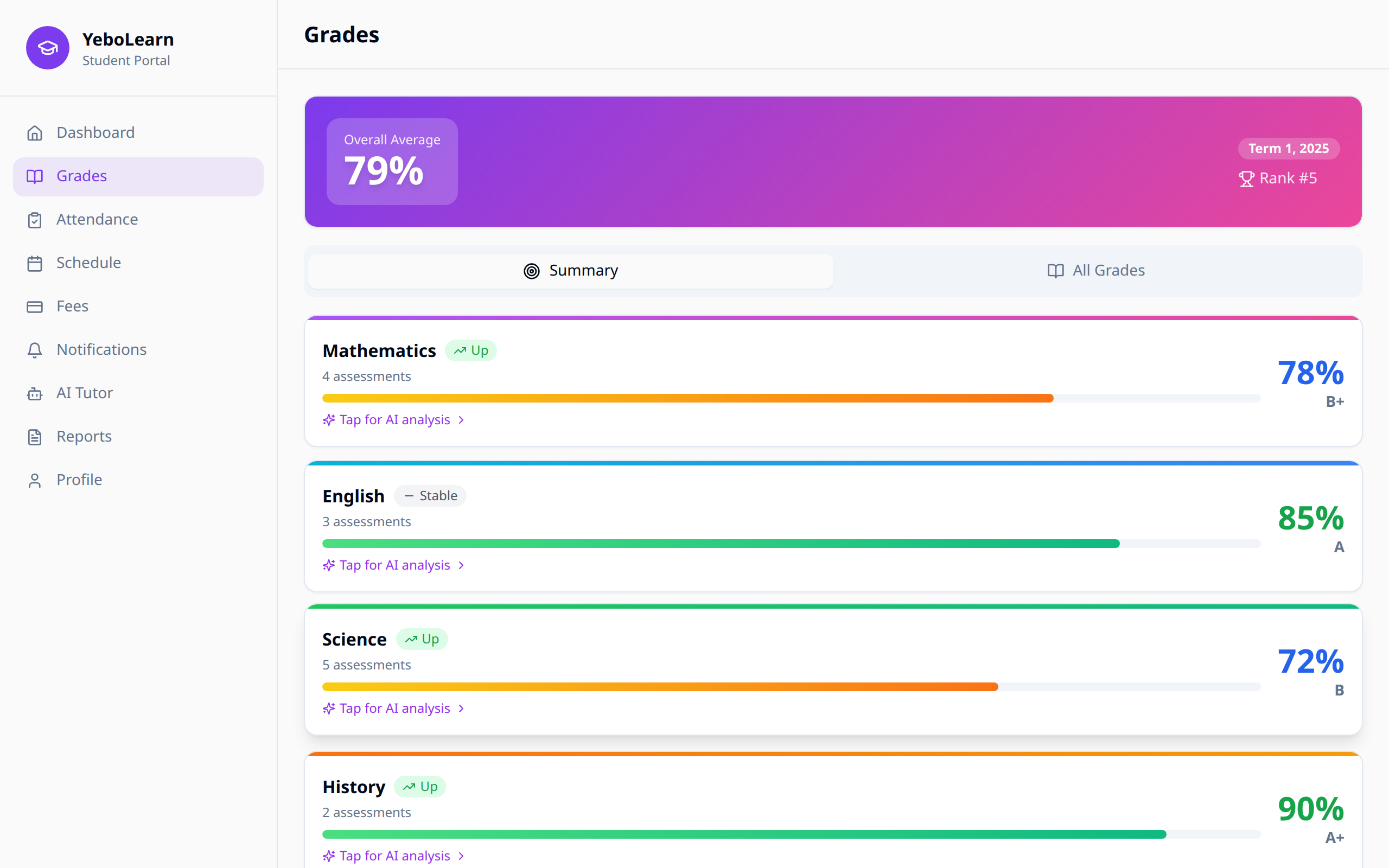
Grades Overview
At the top of the page you'll see your Overall Average for the term, with your current term shown next to it.
Charts
When you have grades, two charts appear:
- Average per subject — a bar for each subject, coloured by how you're doing
- Grade trend — a line showing your scores over time (needs more than one grade)
Summary tab
The Summary tab lists one card per subject with:
- The subject name
- An Up, Down or Stable tag showing which way you're heading
- How many assessments count toward it
- A progress bar
- Your average as a percentage and your letter grade
All Grades tab
The All Grades tab lists every single grade with:
- The subject
- The kind of assessment — exam, test, quiz, assignment or project
- The date and who marked it
- Your teacher's comment, if they left one
- Your score out of the total, plus the percentage
If nothing has been marked yet, you'll see "No grades yet this term."
:::note Letter grades on this page come from your own school's grading scale, so ask your school what each letter means. :::
AI Subject Analysis
Each subject card in the Summary tab says "Tap for AI analysis". Click it to open a deeper, AI-written look at that subject. Give it a few seconds to generate. You'll see:
- A header with the subject, your teacher's name, your current average and grade, how you're trending this term, and your rank in the subject (for example
#3 of 28) - AI Analysis — a short written summary of how you're doing
- Key Insights — the main things to notice, as a bullet list
- Grade History — a line chart of your scores in this subject over time
- Strengths and Areas to Improve — two lists pulled out by the AI
- Learning Patterns — a short note on how your attendance relates to your grades, when you tend to perform best, and your percentile in the class
- Recommendations — specific next steps, each showing how much XP finishing it could earn
- AI-Generated Practice — practice questions you can expand for hints and, for some, a worked solution
Use "Back to Grades" to return.
:::note Ticking off a recommendation or practice item is just for this visit — it's not saved, so it resets if you leave the page and come back. It doesn't add to your real XP total either; that only happens through check-ins, flashcard sessions and course modules (see Achievements). :::
WARNING
If the analysis can't be generated — your school has hit its monthly AI limit, or something goes wrong — you'll see a short error message with a link back to Grades instead of the report.
Grade Colours
Scores are colour-coded so you can spot problems fast: green for strong results, amber in the middle, and red for scores that need attention.
Tips for Improving Grades
- Check regularly - Monitor your grades weekly
- Identify patterns - Notice which assessment types you excel at
- Seek help early - Use AI Tutor for subjects you're struggling with
- Talk to teachers - Discuss improvement strategies
- Set goals - Aim for specific grade targets