
Fees
The Fees section shows what your school has charged, how much has been paid, and how much is still owed.
Accessing Fees
- Click "Fees" in the sidebar navigation
- Your fee page will be displayed
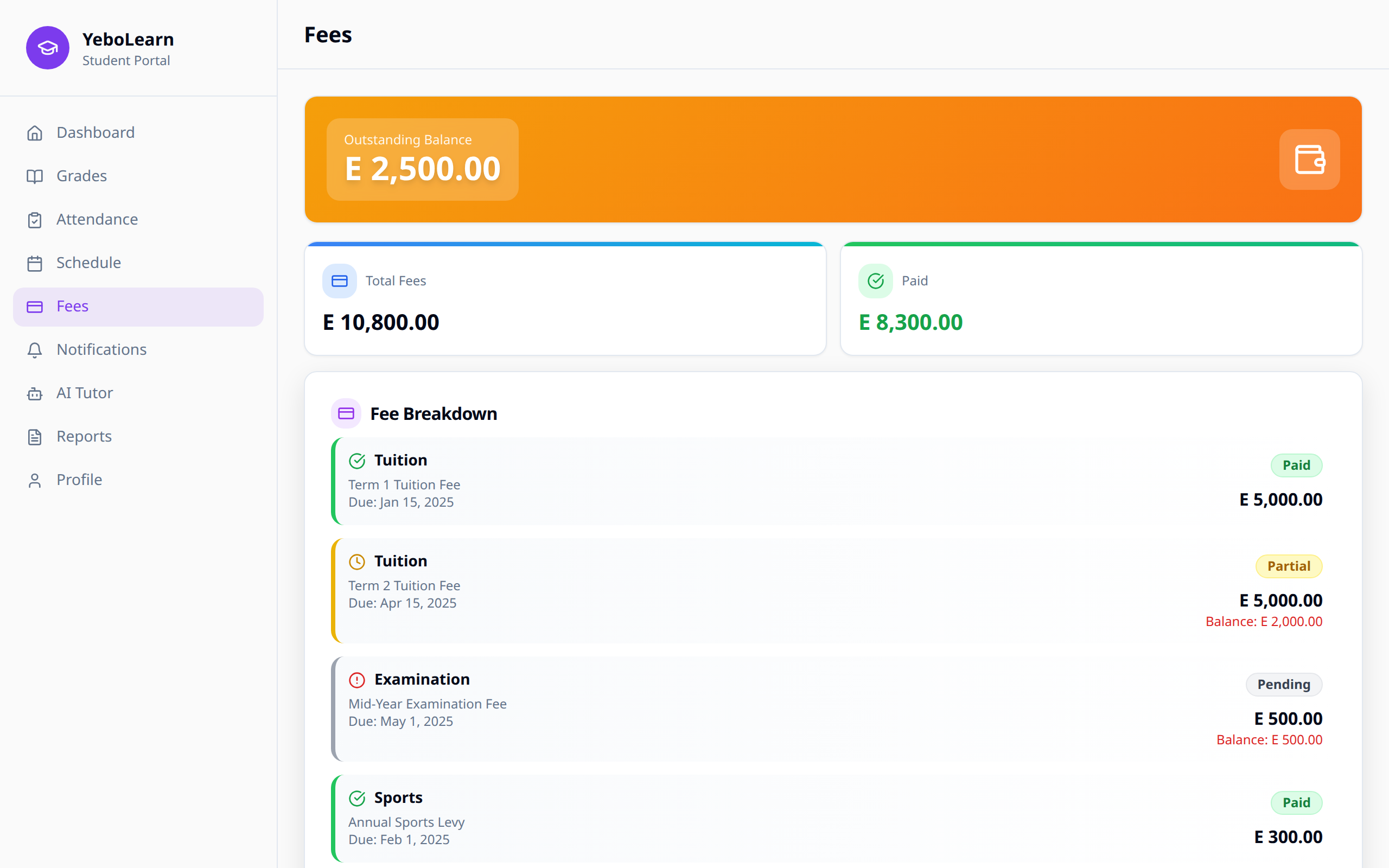
Fee Overview
Summary
At the top you'll see one big number: Outstanding Balance if money is still owed, or All Paid if everything is settled.
Under that are two cards:
- Total Fees - everything you've been charged
- Paid - how much has been paid so far
Fee Status
| Status | Description | Colour |
|---|---|---|
| Paid | Fully paid | Green |
| Partial | Some of it has been paid | Yellow |
| Pending | Nothing paid yet | Grey |
| Overdue | Past the due date | Red |
Fee Breakdown
Fee Breakdown lists each fee your school has added. Every row shows:
- The type of fee
- A short description, if your school added one
- Due: the due date
- A status tag (Paid, Partial, Pending or Overdue)
- The amount, and the balance still owed underneath
If nothing has been added yet you'll see "No fees recorded yet."
Paying Your Fees
You can't pay inside the app yet. When you still owe something, a How to pay note appears telling you to pay through your school's office using the ways they accept — cash, mobile money or bank transfer. Once your school records the payment, the numbers here update.
WARNING
Late payments may result in penalties or restricted access to certain services. Check your school's policy.
If You Can't See Your Fees
Some schools keep fees hidden from student accounts. If yours does, the page says "Fees aren't visible from your account yet" — ask your parent or school admin for your fee details.
Fee Reminders
You can get a notification when fees are due or overdue. Turn Fee reminders on or off in Settings.
Tips
- Check regularly - Monitor your fee status
- Watch due dates - Mark them on your calendar
- Keep proof - Hold on to any receipt the school office gives you
- Ask questions - Contact your school if a fee looks wrong