
Notifications
The Notifications section keeps you informed about important updates, announcements, and activities related to your academic life.
Accessing Notifications
- Click "Notifications" in the sidebar navigation, or
- Click the bell icon at the top right of any page
The Bell Icon
The bell shows a red number when you have unread notifications. Once you're past nine it just shows 9+. Next to it is an envelope icon for your messages, with its own orange count.
Notification Overview
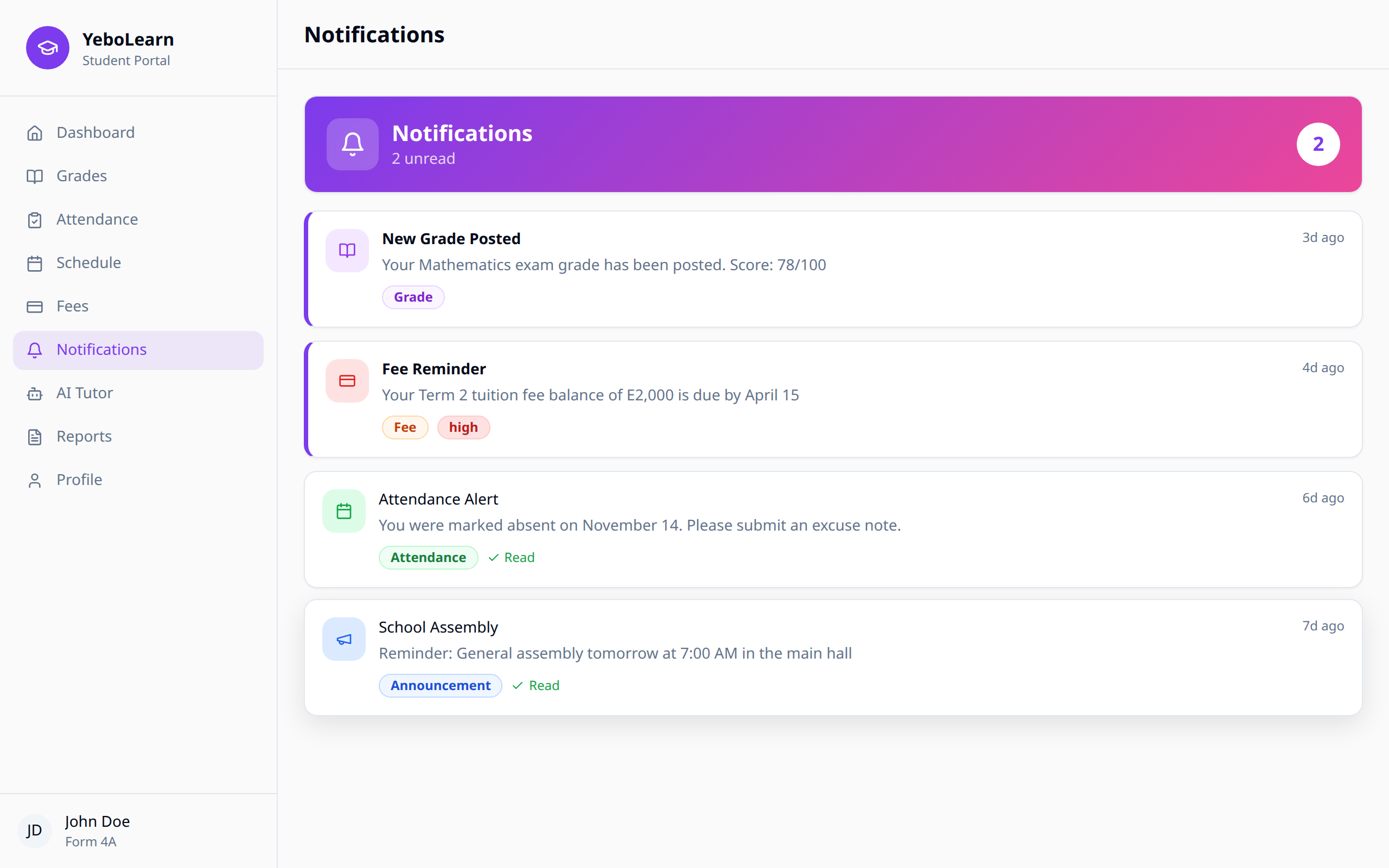
The top of the page tells you how many are unread, or says "All caught up!" when there's nothing new.
Below that is your list, newest first. Each one shows:
- A coloured icon for the kind of notification
- The title and the message
- How long ago it arrived, like
2h agoor3d ago - A tag saying what type it is
- A red high or urgent tag if it's important
- A green Read tick once you've opened it
Unread notifications have a coloured bar down the left side.
Types of Notifications
| Type | What it's about |
|---|---|
| grade | New or updated grades |
| attendance | Your attendance was marked, or there's a problem |
| fee | Fees due or overdue |
| payment | A payment on your fees |
| announcement | News from your school |
| message | Someone messaged you |
| general | Anything else |
Managing Notifications
Reading Notifications
Click a notification to mark it as read. That's it — there's no separate detail page.
Marking Everything as Read
Click "Mark all read" at the top right of the page. The button only appears when you have unread notifications.
Deleting a Notification
Click the small × in the top-right corner of the notification. It's removed straight away.
Choosing What You Get
Notification settings live in Settings, not here.
How you get notified
| Setting | What it does |
|---|---|
| Get notifications by email | |
| SMS | Get notifications by SMS |
| Push notifications | On this device, when the app is in the background |
What you get notified about
| Setting | What it covers |
|---|---|
| Grade alerts | When new grades are posted |
| Attendance alerts | When attendance is marked or there's an issue |
| Fee reminders | When fees are due or overdue |
| School events | Announcements and upcoming events |
| New messages | When a teacher or admin messages you |
Change what you want, then click "Save settings". "Reset to defaults" puts everything back the way it started.
Best Practices
- Check daily - Review notifications each day
- Act promptly - Respond to urgent items quickly
- Don't switch off the important ones - Keep grade, attendance and fee alerts on
- Tidy up - Delete old notifications you've dealt with
WARNING
Don't ignore fee reminders or attendance alerts—they may affect your academic standing.
Troubleshooting
Not Receiving Notifications
- Check your settings are turned on in Settings
- Make sure your school has the right email address and phone number for you
- Check your spam/junk folder for emails
"Couldn't load notifications"
- Click "Retry"
- Check your internet connection
- Try signing out and back in
Too Many Notifications
- Turn off the categories you don't need in Settings