
Schedule
The Schedule section displays your class timetable, helping you stay organized and never miss a class.
Accessing Your Schedule
- Click "Schedule" in the sidebar navigation
- Your timetable will be displayed
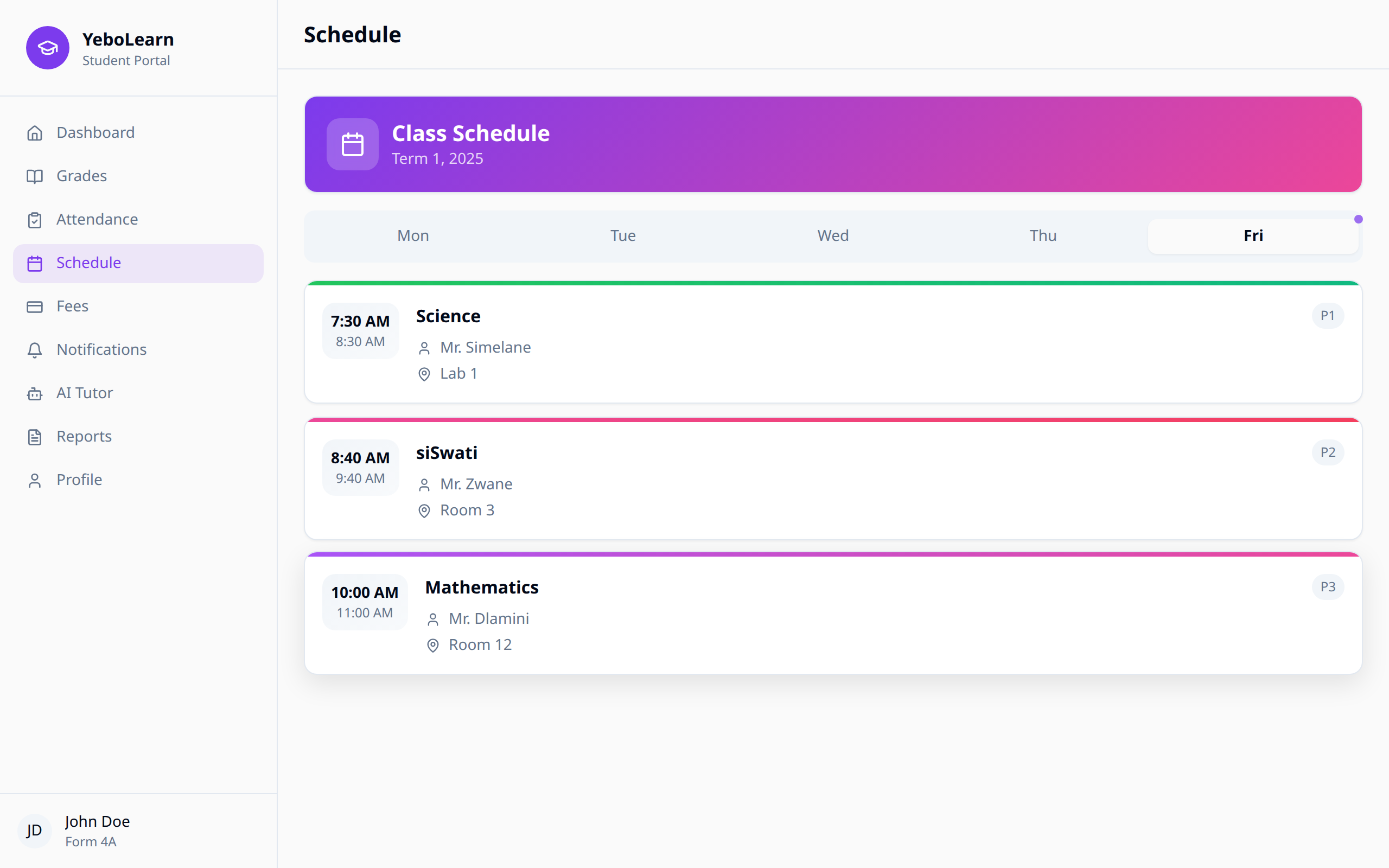
Choosing a Day
At the top of the page, Class Schedule tells you how many classes you have in a week.
Below that are five day tabs — Mon, Tue, Wed, Thu, Fri. Today's tab is in bold with a small dot on it. Tap any tab to see that day's classes, sorted from first period to last. On a weekend the page opens on Monday.
Understanding Your Timetable
Class Information
Each class card shows:
| Field | Description |
|---|---|
| Time | Start time, with the end time underneath |
| Subject | The subject being taught |
| Teacher | Your teacher's name |
| Room | Where the class is (when your school has added it) |
| P1, P2, P3… | The period number for that day |
Colour Coding
Each subject has its own coloured strip along the top of the card, so you can recognise your subjects quickly.
When There Are No Classes
- "No timetable yet" — your school hasn't published this term's timetable. Check back soon.
- "No classes scheduled" — you have classes on other days, but not this one. Enjoy your free day!
Refreshing
If your school has just changed something, click "Refresh" at the top right to pull in the latest timetable. If it can't load, you'll see "Couldn't load your schedule" with a "Retry" button.
Using the Schedule Effectively
Tips
- Check daily - Review your schedule each morning
- Note the room - Pay attention to where each class is
- Plan ahead - Tap through the other day tabs at the start of the week
- Refresh after changes - Pull in the newest version if your school tells you something moved
Planning Study Time
Use gaps in your schedule for:
- Completing assignments
- Flashcards and course modules
- AI Tutor sessions
- Group study