
Your first day as a student
Start here if you have just received your school account. In about 10 minutes, you will know where to find your grades, check attendance and open your next learning task.
Before you start
Use the portal link and email your school supplied. You need an activated student account and your password. A parent or teacher account will not open the student portal. If you only want to explore, open the student demo; its banner makes clear that nothing is saved.
1. Sign in and recognise your dashboard
- Open your school's student portal and enter your school-registered Email and Password.
- Select Sign in. For a first-time invite, complete the activation form before returning here.
- Check the name and class in the sidebar. If either belongs to someone else, sign out and ask your school for help.
- Look for Dashboard, Grades and Attendance in the sidebar.
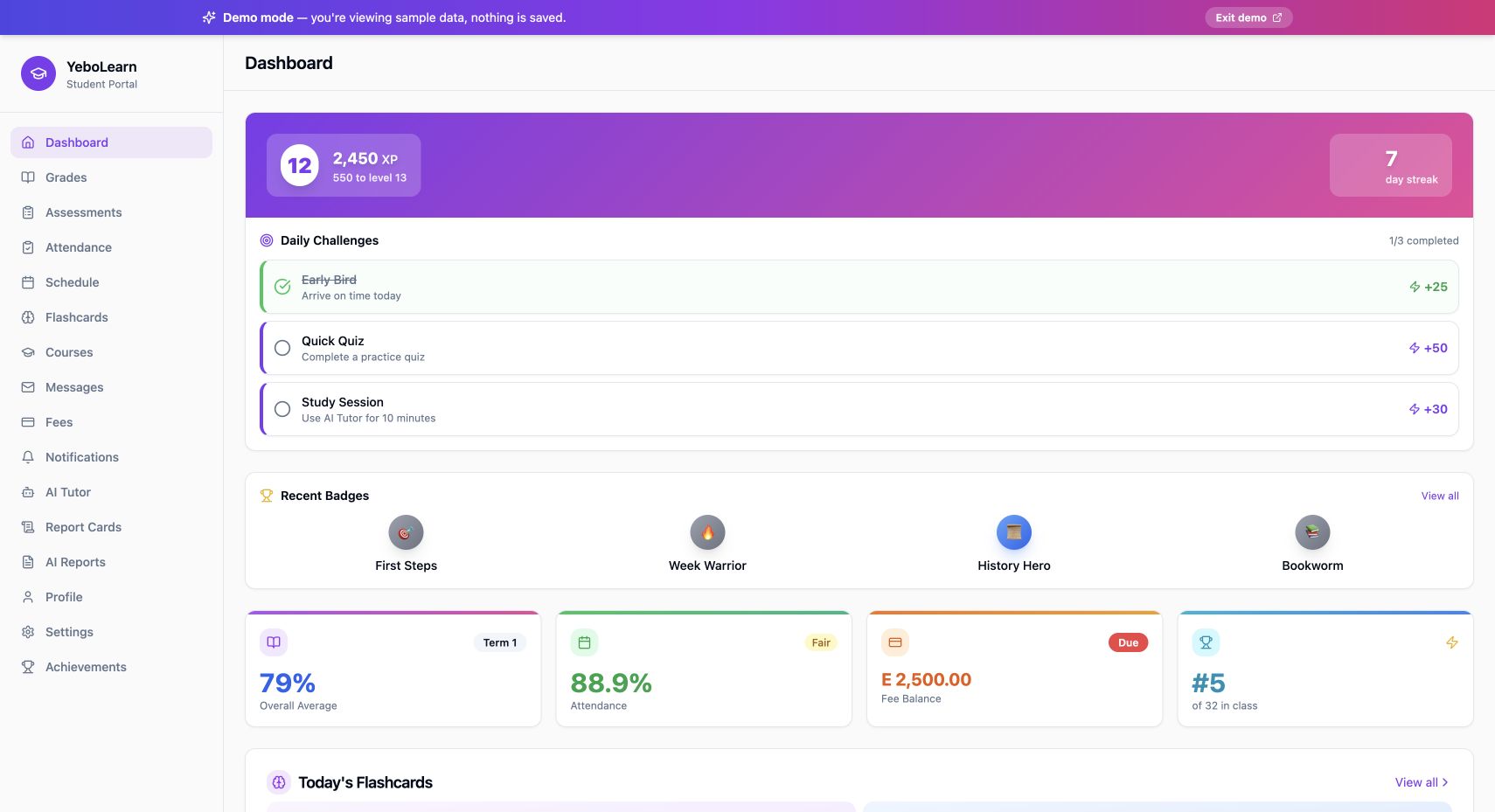
Actual YeboLearn interface, captured in the public demo on 24 October 2026. Names, marks and balances are sample data. Select the image to view full size.
The dashboard is a summary. The average and attendance cards are useful starting points; a fee balance does not mean a payment was made. XP and achievements appear only where your school enables them.
You are ready: the dashboard has loaded for the right student and class. If it shows a loading error, use its retry control or contact your school; do not interpret an error as having no grades.
2. Read the grades behind the average
- Open Grades.
- Start with Summary to compare subject averages.
- Open All Grades to see the individual assessments behind those averages.
- Read the assessment name and date before discussing a mark with a teacher.
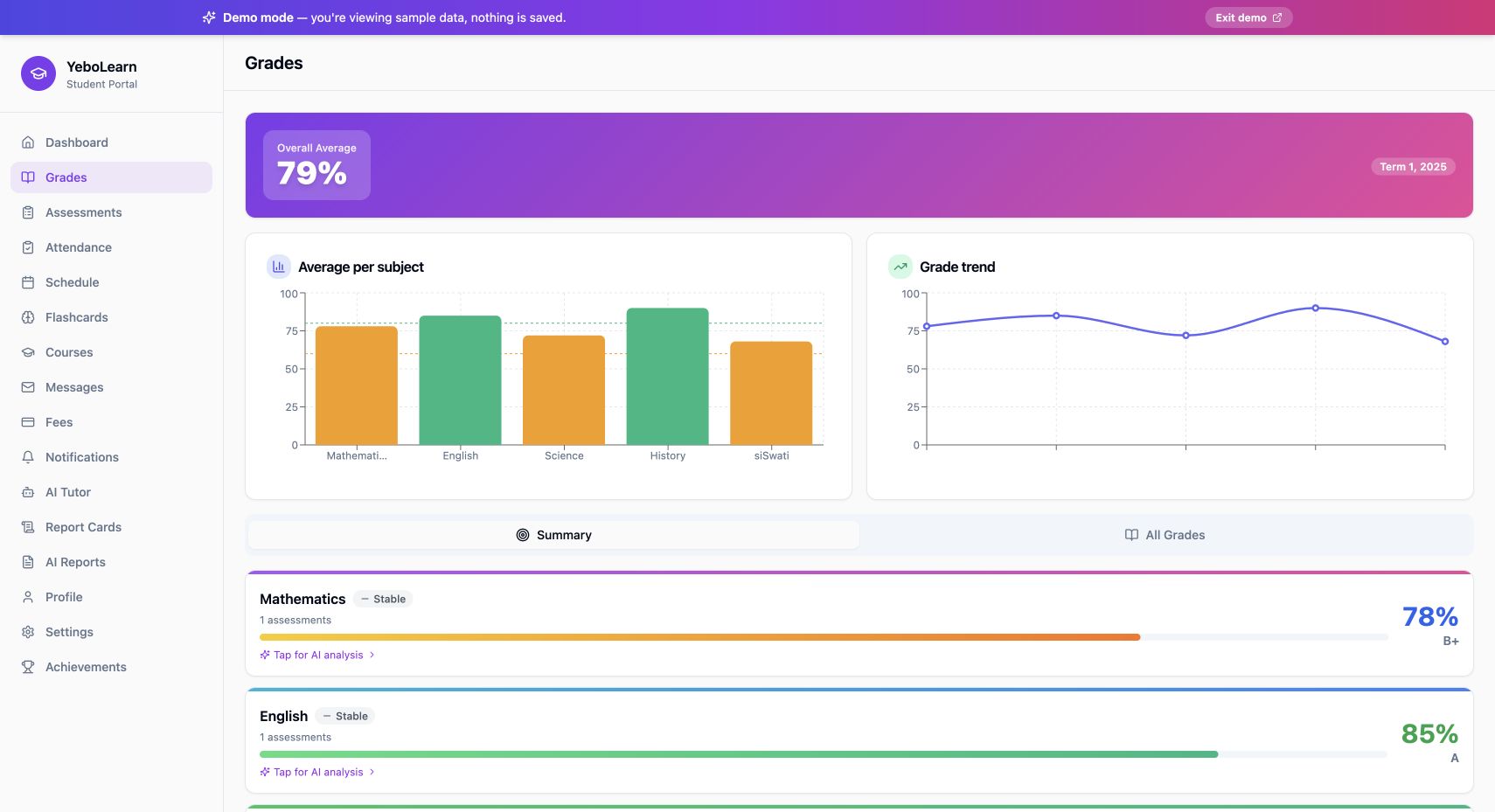
Actual YeboLearn interface, captured in the public demo on 24 October 2026. Names, marks and balances are sample data. Select the image to view full size.
Check: you can identify one subject and the work contributing to its result. A missing mark is not automatically a zero. If a recent assessment has not appeared, ask the teacher whether marks have been entered and published. The Grades guide explains the full view.
3. Check attendance
Open Attendance and review the rate and the Present, Absent, Late and Excused totals. Look at the recent records rather than judging the percentage alone.
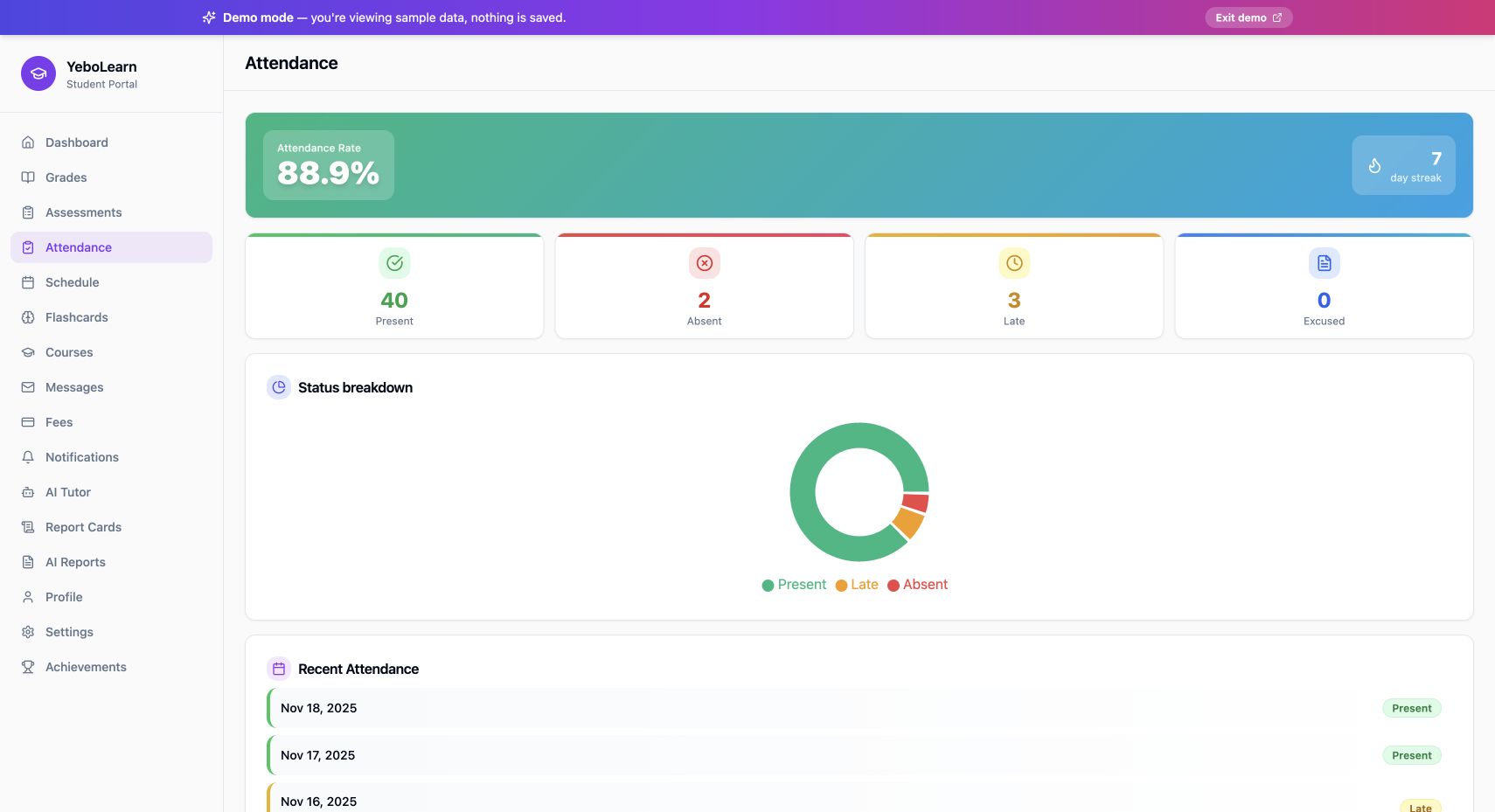
Actual YeboLearn interface, captured in the public demo on 24 October 2026. Names, marks and balances are sample data. Select the image to view full size.
If a date is wrong, tell your teacher or school administrator which date needs checking. The student page displays attendance; it does not let you rewrite the official register. Continue with Attendance.
4. Find today's learning task
Open Schedule to see the day's classes. For assigned online learning, choose Courses or Flashcards. Open the item your teacher assigned, complete it, and check its progress state before leaving. If there are no assigned decks or courses, ask your teacher which task to use.
The public demo does not implement every learning endpoint. If it explicitly reports a demo-only unsupported endpoint, explore the illustrated dashboard, grades and attendance instead; that error is not proof that your school's courses are empty. A real-school load error still needs to be retried or reported.
5. Find reports and sign out
Use Report Cards for official term cards your school has released. A card can be unavailable while marks are incomplete or the school has not released it. AI Reports is a different feature; generated analysis is not the school's official report card.
On a shared device, open Profile and select Sign Out when finished. See Authentication if you need account help.
If you get stuck
| What you see | Next action |
|---|---|
| Sign-in fails | Confirm that you used the student portal and the email your school registered. |
| Invite expired | Ask your school for a new invitation; do not create a duplicate account. |
| No school records | Confirm your enrolment and class with the school administrator. |
| An error with Retry | Retry after checking your connection; keep the actual error for school support. |
| Report card missing | Ask whether the term's cards have been released. |
You are finished when you can find a subject result, an attendance record and your next task. Continue with Courses, Messages or Reports.