
Dashboard
The Dashboard is your home screen in the Students App, providing a quick overview of your academic status and recent activities.
Overview
When you log in, the Dashboard displays key information at a glance:
- Your progress - XP, level and day streak
- Quick stats - overall average, attendance, fee balance and class rank
- Flashcards - what's ready for you to study
- Today's Classes - your timetable for today
- My Grades - your top subjects and how they're trending
- New Notifications - anything unread from your school
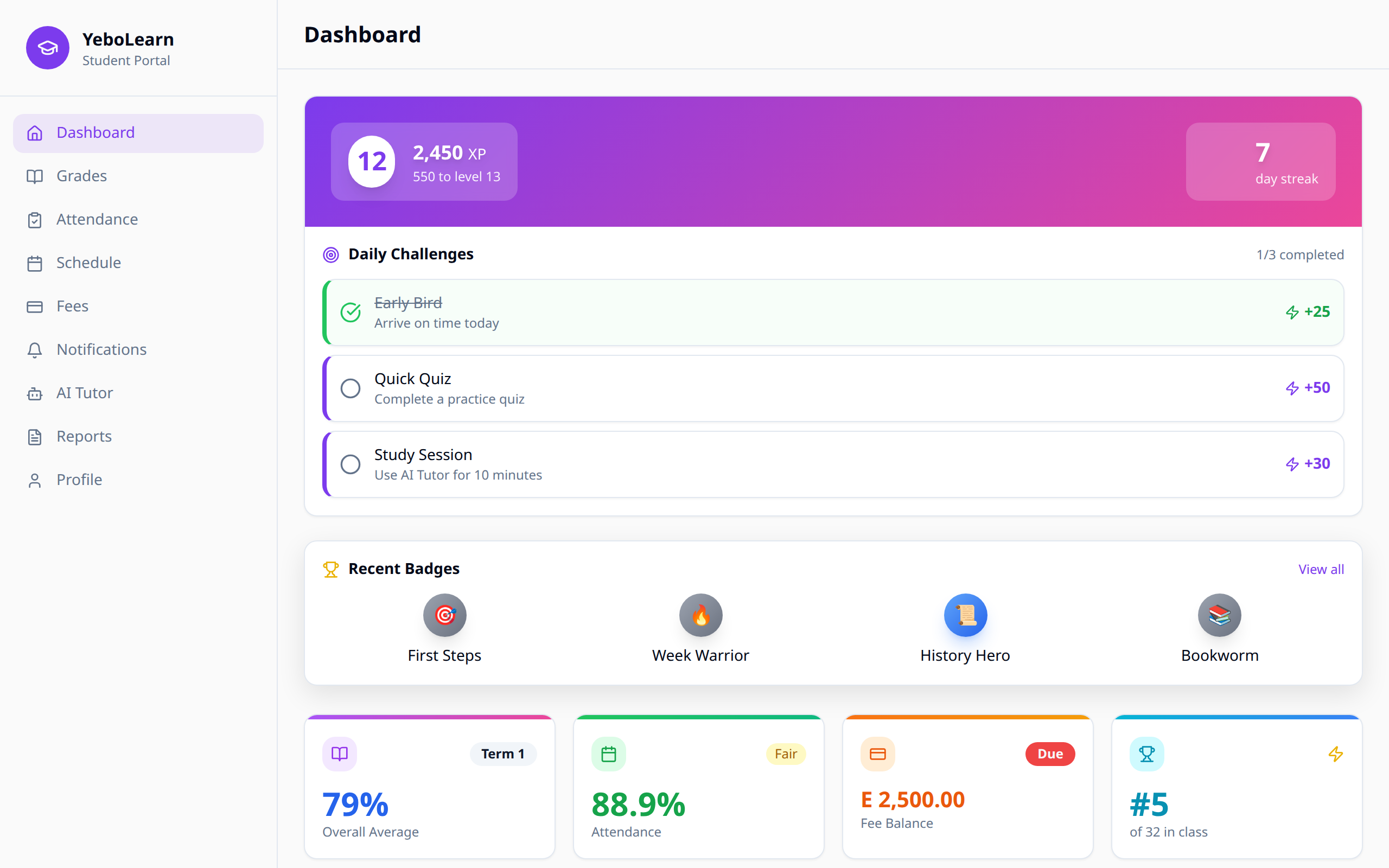
Dashboard Sections
XP, Level and Daily Challenges
At the top you'll see your level, your total XP, how much XP you need for the next level, and your day streak. Opening the app each day keeps your streak going.
Under that, Daily Challenges shows today's three goals and how many you've finished, for example 1/3 completed:
| Challenge | What completes it | XP |
|---|---|---|
| Show Up | Check in by opening the app today | 10 |
| Quick Study | Complete a flashcard study session | 30 |
| Study Session | Complete a course module | 50 |
:::note This card only appears if your school has turned on XP and badges. :::
Recent Badges
If you've earned badges, the four newest ones appear here. Click "View all" to open the Achievements page.
Quick Stats
Four small cards show:
| Card | What it shows |
|---|---|
| Overall Average | Your average across all subjects this term |
| Attendance | Your attendance rate, tagged Good, Fair or Low |
| Fee Balance | What's still owed, with a "Due" tag if it's above zero |
| Class Rank | Your position in your class (XP and badges only) |
Flashcards
A card with the cards Due Today, how many Decks you have and your Overall Progress, plus a Continue Studying shortcut into a deck.
Today's Classes
Your classes for today, with the subject, the teacher, the start time and the room. Click "View all" for your full timetable. If nothing is scheduled you'll see "No classes today!".
My Grades
Your top subjects with the average for each, a progress bar, and an arrow showing whether you're going up, down or staying steady. Click "View all" for every grade.
New Notifications
Appears only when you have unread notifications. It shows the newest three; click "View all" to open Notifications.
AI Tutor
A card at the bottom with a "Start Learning" button that opens the AI Tutor.
Tips for Using the Dashboard
- Check daily - Make it a habit to review your dashboard each morning
- Act on notifications - Don't ignore important updates
- Monitor trends - Keep an eye on your academic and attendance trends
- Keep your streak - Opening the app each day builds it up