
Check your child's school day
This walkthrough helps you answer four questions: am I looking at the right child, how are they doing, is attendance correct, and has the school released a report card? Allow about 10 minutes.
Before you start
Use the parent portal and email your child's school invited. The school must link your child to that account. A student or teacher login cannot substitute for parent access. To explore first, open the parent demo, which contains sample families and does not save changes.
1. Choose the child before reading the numbers
Sign in, then check the child shown in the sidebar or top child picker. The dashboard is for that child, rather than a combined academic average for your family.
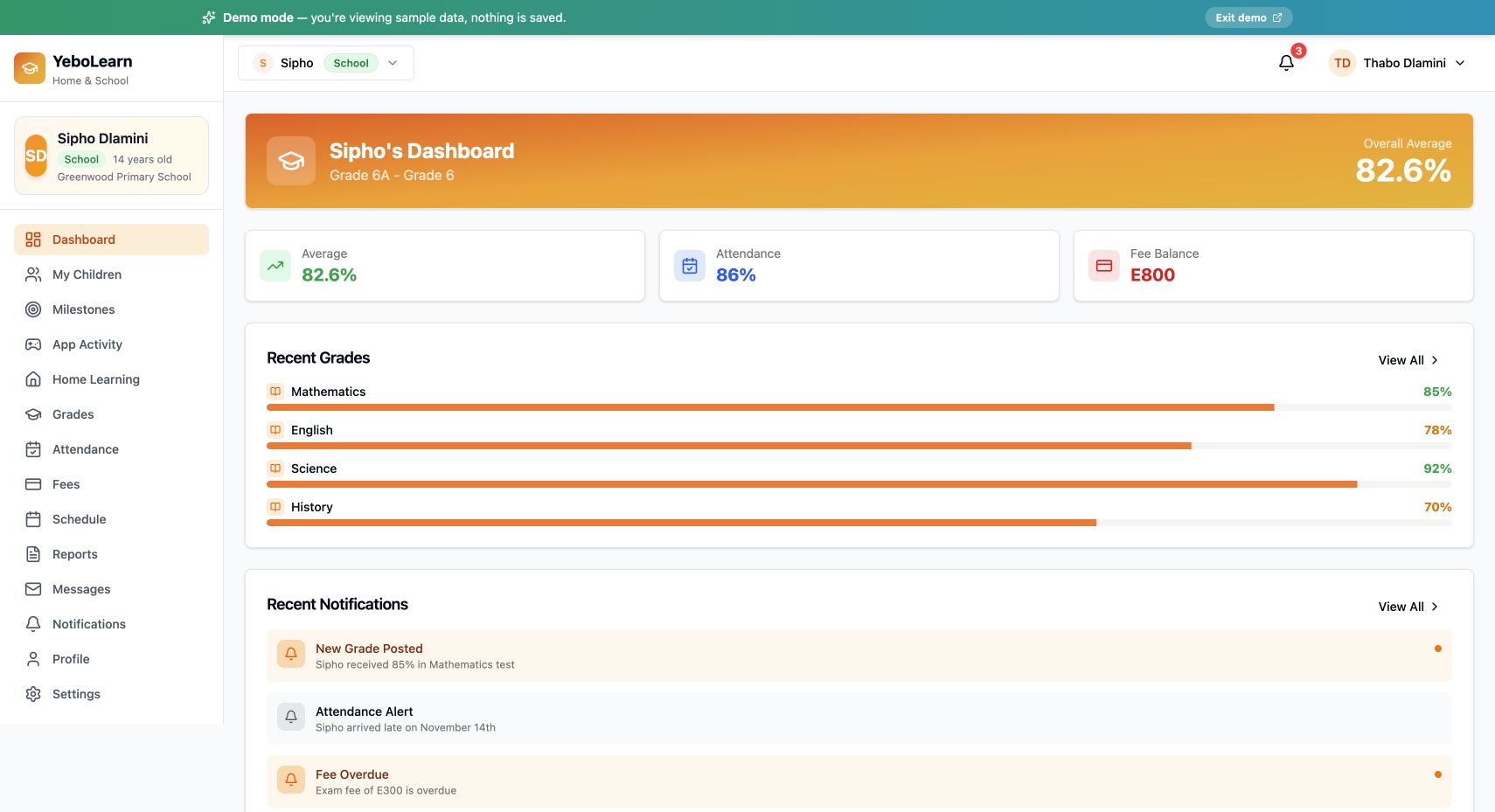
Actual YeboLearn interface, captured in the public demo on 24 October 2026. Names, marks and balances are sample data. Select the image to view full size.
Use the picker to switch children, then check the name again. When a child has no school enrolment or no graded work, the page should say so; an error loading school records is different and needs attention.
Ready to continue: the active child's name and class are correct.
2. Find all linked children
Open My Children. Each card identifies a child and their class. Use Quick View or Full Analysis to open that child's detail view, or View report cards to look for term cards.
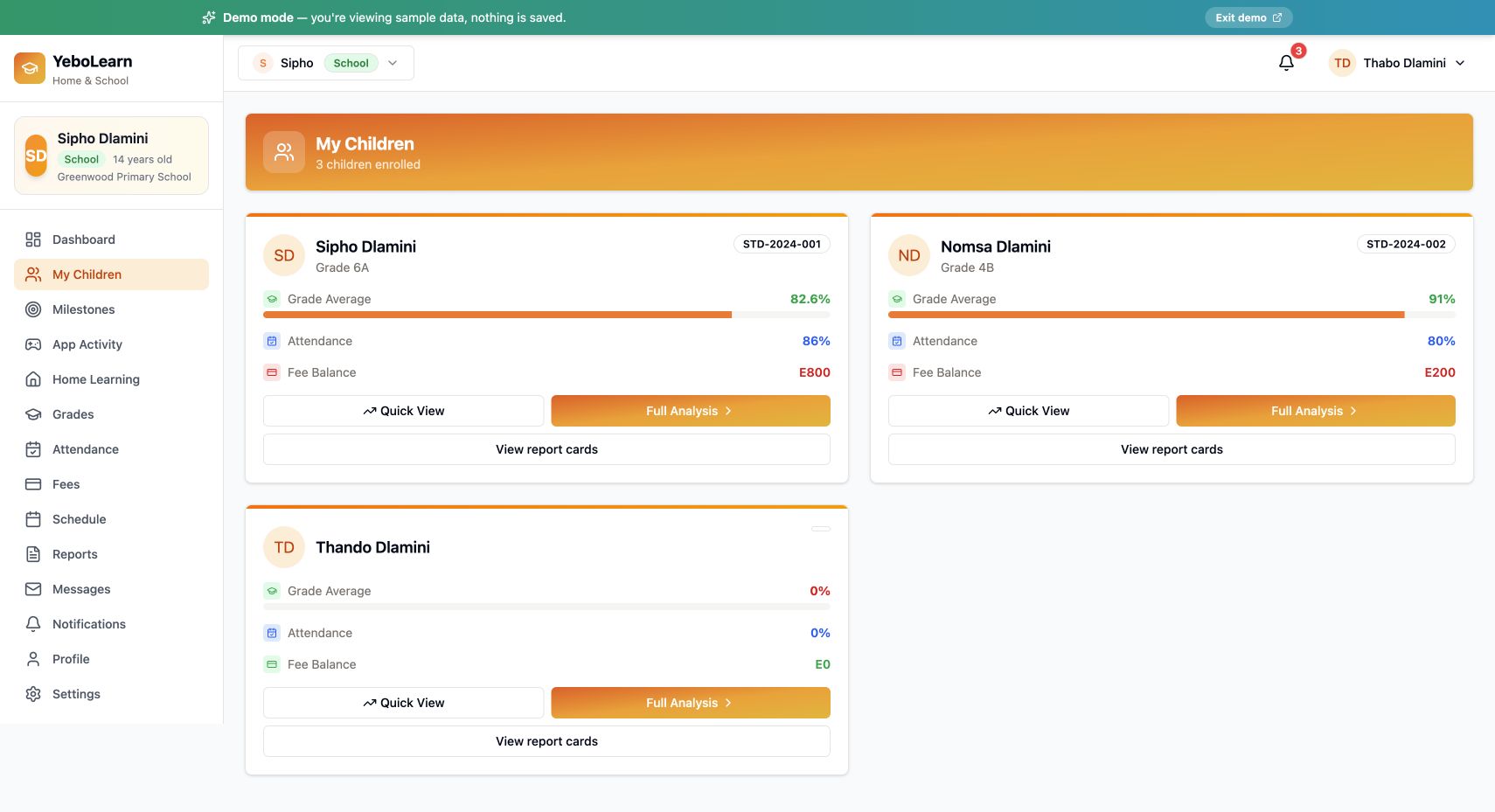
Actual YeboLearn interface, captured in the public demo on 24 October 2026. Names, marks and balances are sample data. Select the image to view full size.
A child missing from this page must be linked by your school. Ask the administrator to check the relationship and the email address on your parent account. Do not create a second parent account as a workaround. See Children.
3. Read the grades in context
With the correct child selected, open Grades. Use Summary for the subject overview and All Grades to read individual assessments.
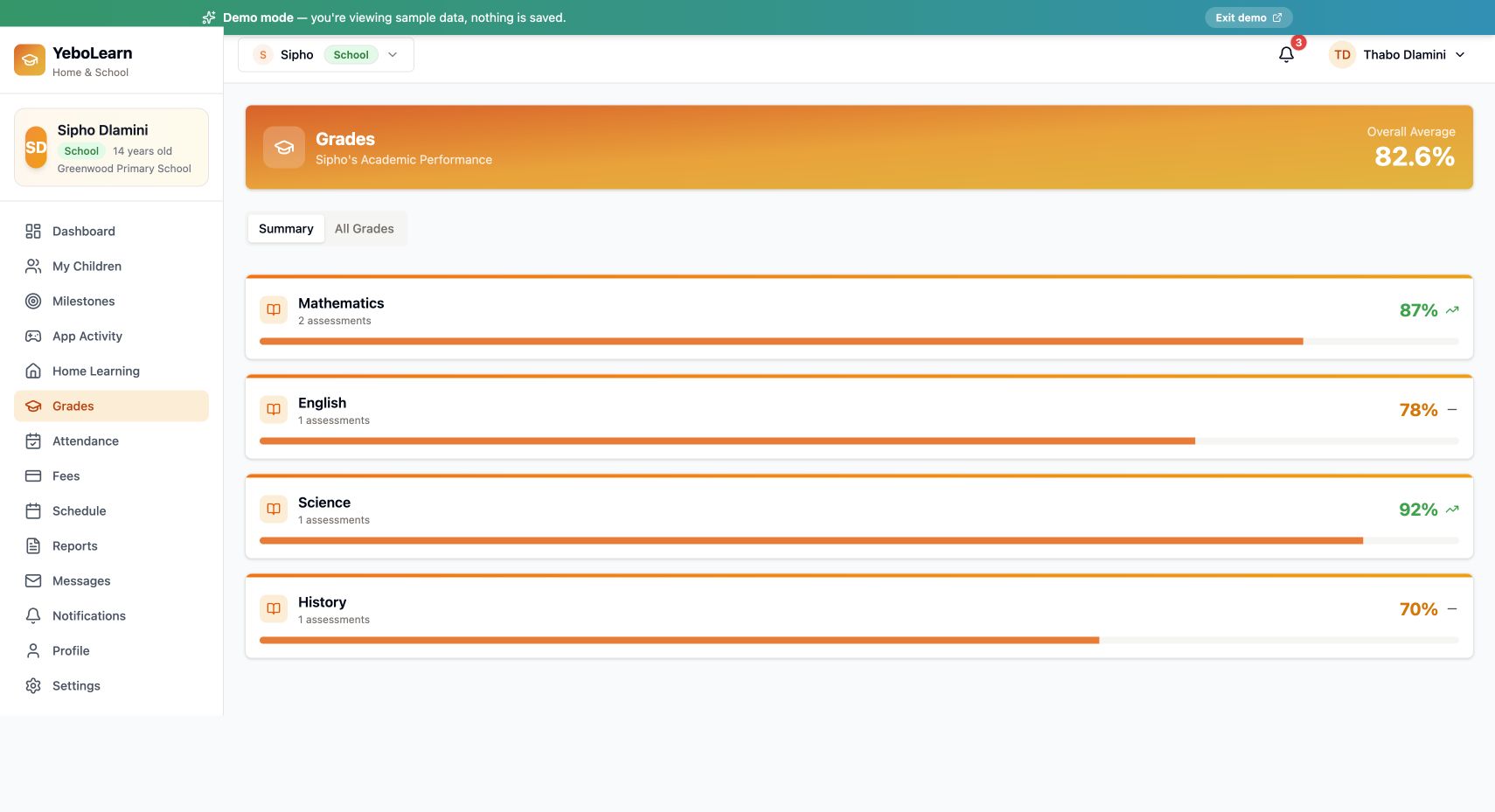
Actual YeboLearn interface, captured in the public demo on 24 October 2026. Names, marks and balances are sample data. Select the image to view full size.
Check which assessment and term a mark belongs to before comparing it with a previous result. A subject average and an individual test score answer different questions. If work is missing, first ask whether the teacher has entered it; do not assume the child received zero.
The Grades guide explains the information on this page. Full Analysis can add context, but generated suggestions should be discussed with the school rather than treated as the school's final decision.
4. Review attendance and fees
Open Attendance and look for specific dates behind an absence or late count. Tell the school the date and child if something is wrong. Parents view the official record; they do not edit it here.
Open Fees to inspect what the school says is due and any recorded payment history. A displayed balance, an opened checkout or a payment redirect is not a payment receipt. Follow the school's payment instructions and check the confirmed payment record before assuming the balance has changed. This tutorial does not require making a payment.
5. Find the official report card
Open Reports, or select View report cards from the child's card. Choose the relevant year and term, then download the available PDF. Check the child's name, school and term in the downloaded document.
If no card appears, ask whether the school has released that term's cards. Grades can exist before the official report is released. Use Reports and the Report Cards guide for the release process.
6. Ask for help and sign out
Use Messages for the school's available teacher conversations. Include the relevant child, subject or attendance date when asking a question; avoid sending identity documents or passwords in a message.
On a shared device, select your name/avatar and Log out when done.
If you get stuck
| What you see | Next action |
|---|---|
| Parent login rejected | Confirm your portal and the invited email with the school. |
| Child missing | Ask the administrator to link the child to your account. |
| Wrong child's results | Switch the child picker and check the page name again. |
| Empty grades | Ask whether the child has graded work and is enrolled in the correct class. |
| Loading error | Check connectivity and retry; an error does not mean zero grades or zero fees. |
| Report missing | Ask whether that year and term have been released. |
Continue with Attendance, Fees and Messages.