
Dashboard
The Dashboard provides an overview of the selected child's academic status and recent notifications.
Overview
When you log in, the Dashboard displays:
- Child header - "{Child}'s Dashboard" with their class and Overall Average
- Quick stats - Average, Attendance and Fee Balance
- Recent Grades - The latest assessments with their percentages
- Recent Notifications - The newest updates from the school
- View Full Analysis - Opens the in-depth analysis for that child
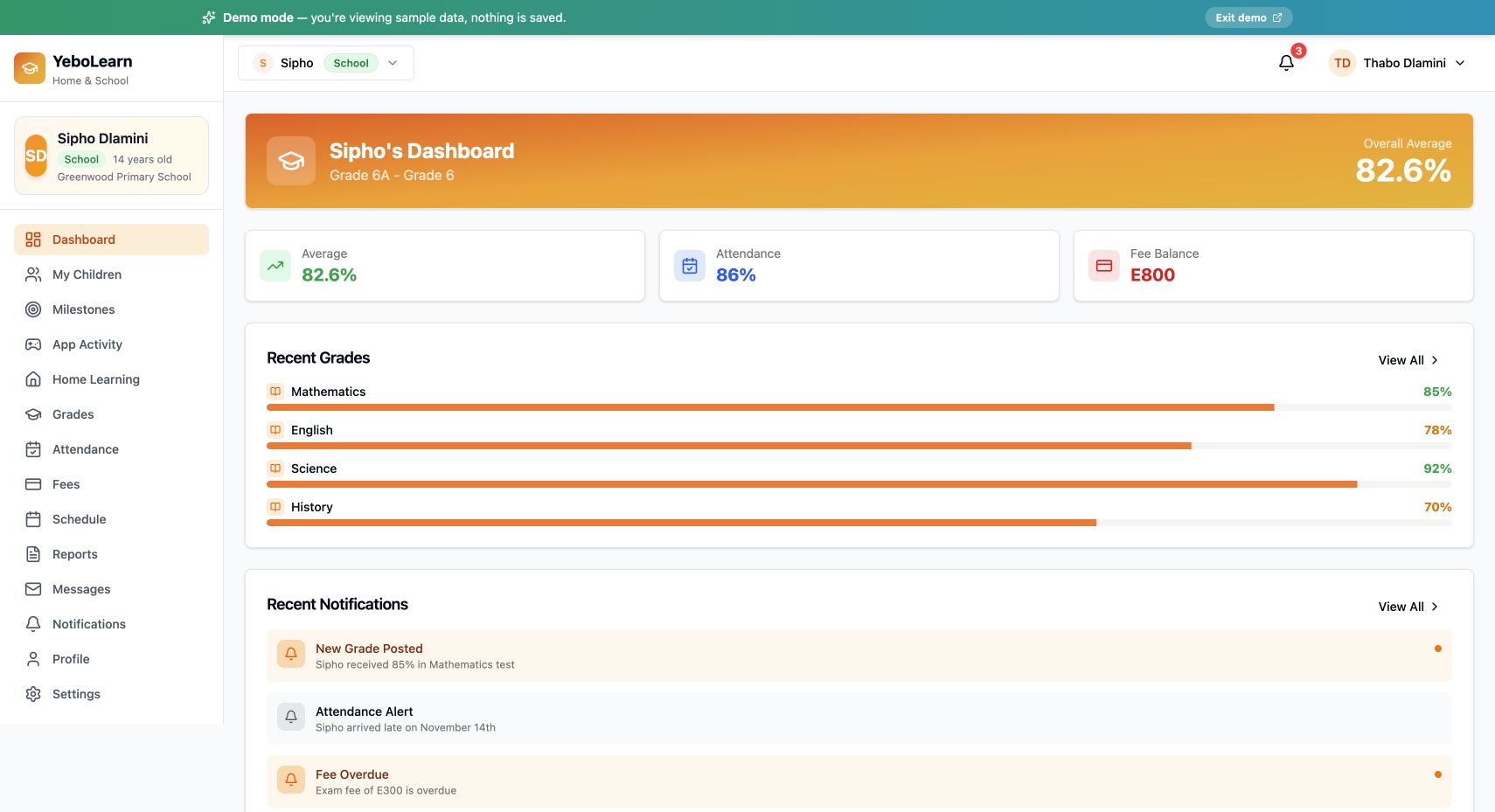
Dashboard Sections
Child Header
The banner at the top shows the selected child's name, their class and grade level, and their overall average as a percentage.
Quick Stats
Three cards summarise how the child is doing:
| Card | What it shows |
|---|---|
| Average | Overall grade average across all subjects |
| Attendance | Attendance rate as a percentage |
| Fee Balance | Everything still outstanding on the fee account |
The fee balance turns red when there is money owing and green when the account is clear.
Recent Grades
The four most recent assessments, each with the subject, the percentage and a progress bar. Click "View All" to open the Grades page. If nothing has been posted yet, it reads "No grades yet."
Recent Notifications
The three newest notifications, with unread ones highlighted. Click "View All" to open the Notifications page.
View Full Analysis
The button at the bottom opens the child's full analysis: an AI summary, strengths, areas for improvement, recommendations and performance charts. See Children for what's on that page.
Multiple Children
Switching Children
The Dashboard shows one child at a time.
- Click the child picker at the top of the page (or the child card in the sidebar)
- Choose a child from the list — the active one is marked
- Every page, including the Dashboard, updates for that child
There is no combined view across children — switch child to see each one's figures.
Tips for Using the Dashboard
- Check daily - Review updates each day
- Act on alerts - Address issues promptly
- Use View All - Jump straight to full grades or notifications
- Monitor all children - Switch child and check each one regularly
- Stay engaged - Active monitoring helps student success
The updated screenshot above was captured in the public demo on 24 October 2026 and contains synthetic school records.