
Authentication
This guide covers how to access your YeboLearn Parents App account securely.
Login
How to Login
- Navigate to the Parents App login page — it's headed "Welcome Back"
- Enter your Email
- Enter your Password
- Click "Sign In"
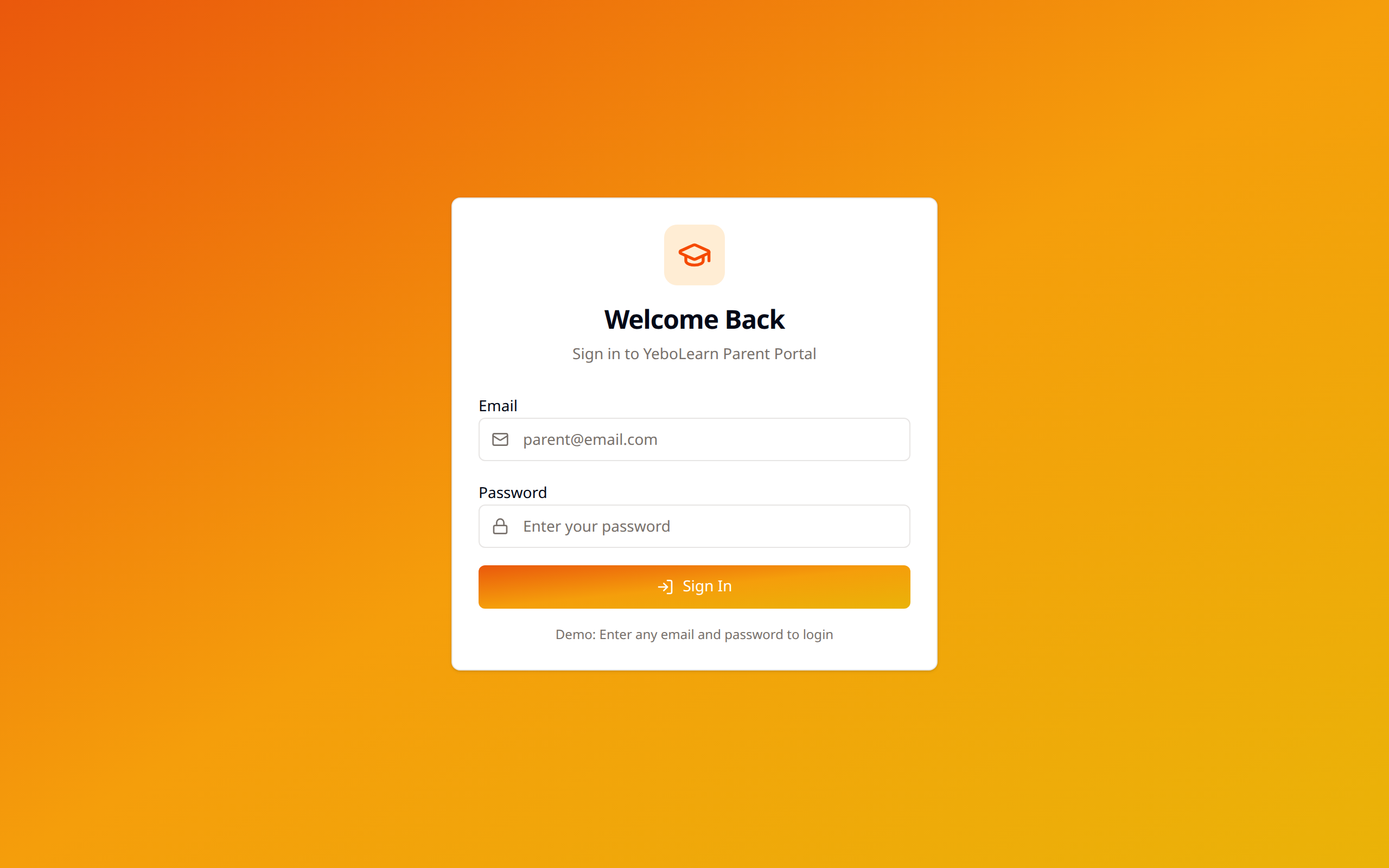
:::note Sign in with the email address your school invited. The parent portal only accepts parent accounts — a teacher or school-admin login is rejected here. :::
Just Looking Around?
The login page offers a demo. Click "Use demo credentials" and sign in to explore the dashboard with sample data. A green Demo mode banner stays on screen the whole time, and nothing you do in the demo is saved.
First-Time Login
When the school invites you, you'll receive an invite link. Opening it shows the school's name and the email address being invited, and asks for:
- First name and Last name
- Phone (optional)
- Password, then Confirm password
- Click "Activate & continue"
Your account is created and you're signed in straight away.
Forgotten Password
The Parents App doesn't have a self-service password reset. If you can't sign in, contact your child's school and ask them to help you regain access.
Password Requirements
When you set your password it must include:
- At least 8 characters
- One uppercase letter
- One lowercase letter
- One number
Logging Out
To log out:
- Click your name or avatar in the top right
- Select "Log out"
You can also use the "Log Out" button at the bottom of the Profile page.
WARNING
Always log out on shared devices to protect your child's information.
Security Tips
- Never share your credentials
- Use a unique, strong password
- Log out on shared/public devices
- Report suspicious activity to the school
- Keep your contact information updated